Brevo Integration
Respond to Reviews by Email – with Brevo
With the Brevo integration, you can respond directly from re:spondelligent to reviews received via IWantTo.Review, specifically IWTR Ratings and IWTR Forms, where a guest’s email address has been provided.
Here’s how it works: You connect your Brevo account to re:spondelligent via API, create an email template in Brevo, and can then send your responses as professional emails to your guests with a single click – using your own sender address. Of course, you can also use our AI-generated response suggestions and send them directly to your guests by email.
Create a Brevo API Key
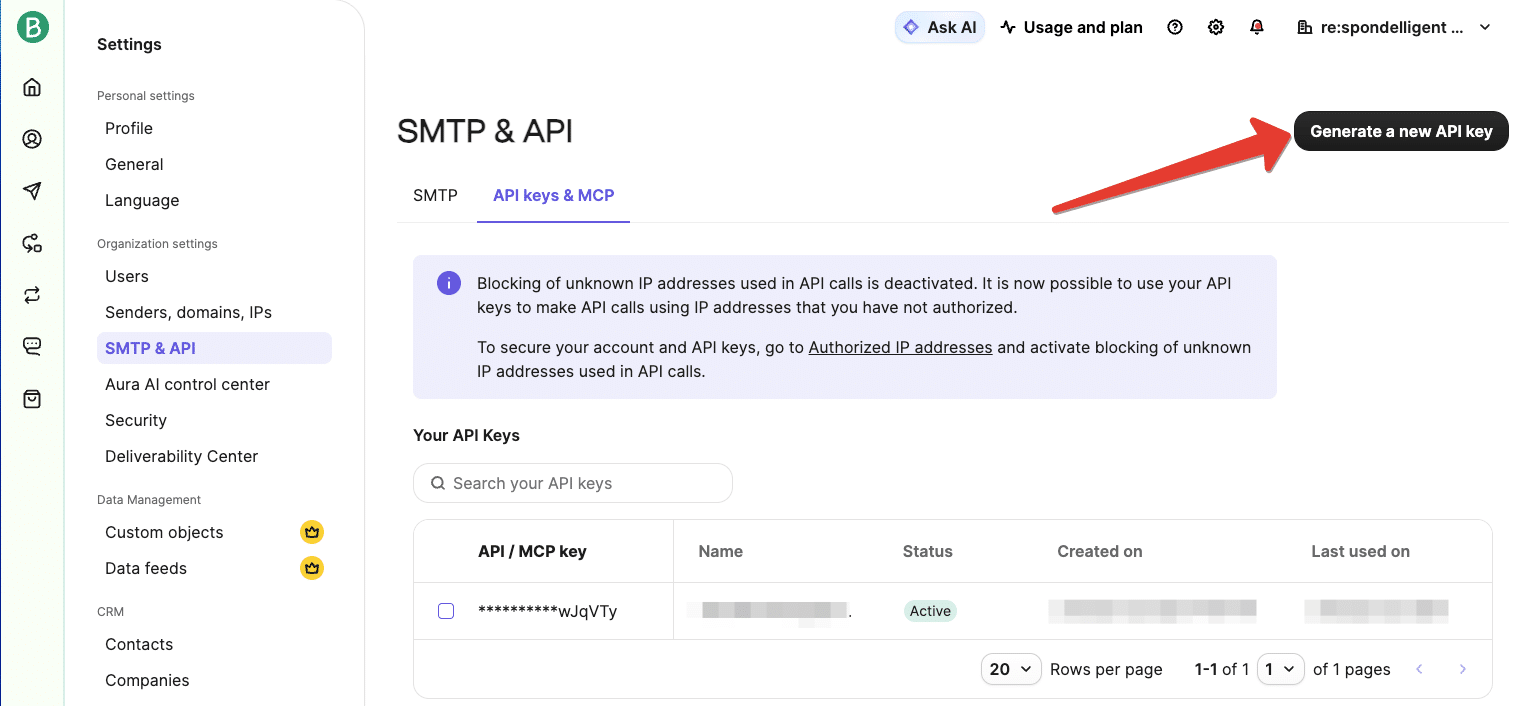
Log in to your Brevo account and navigate to Settings → SMTP & API. Switch to the API keys & MCP tab and create a new API key. Copy it – you’ll need it in the next step to establish the connection with re:spondelligent.
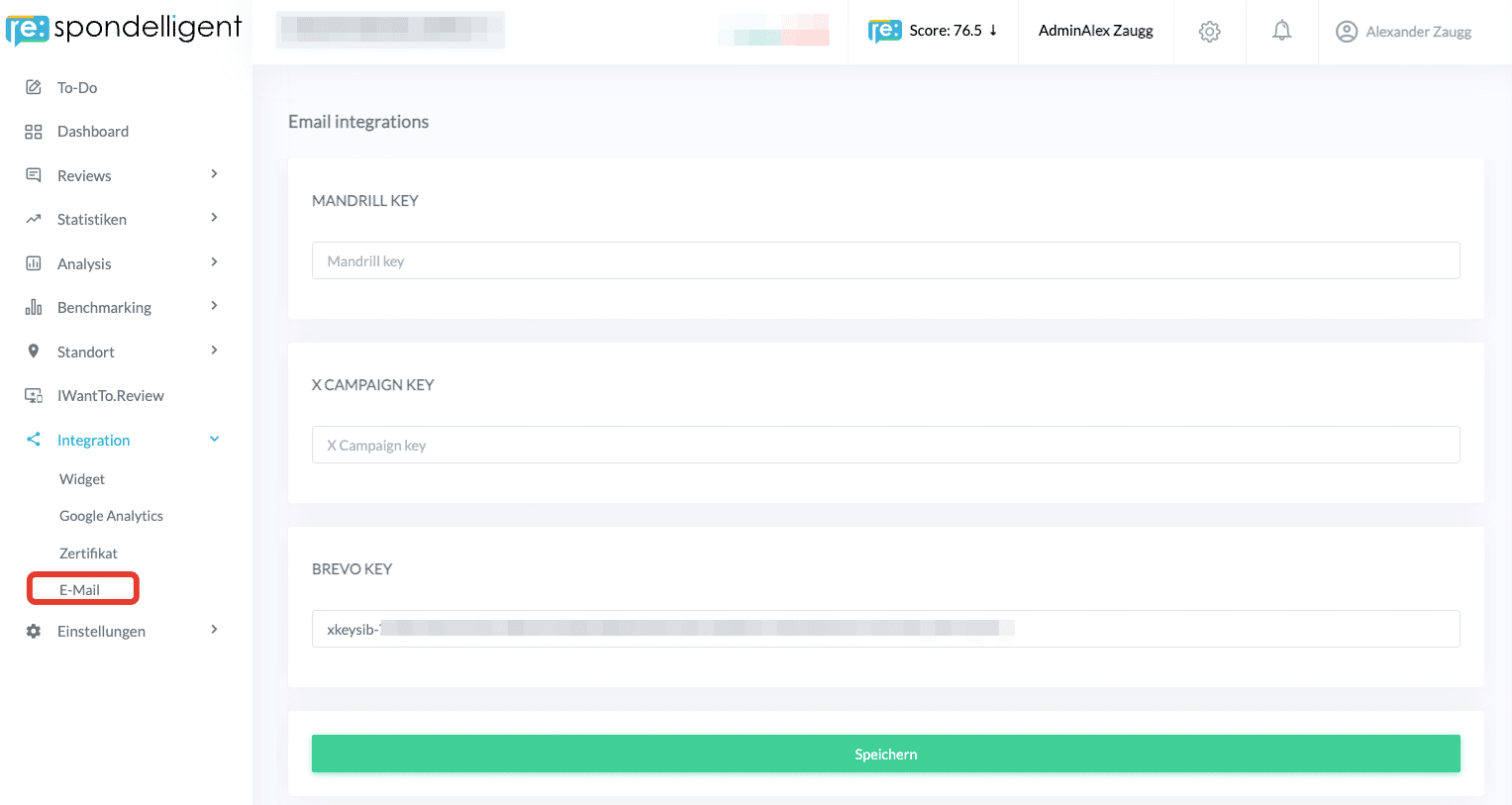
Go to re:spondelligent, navigate to Integration → Email, paste the copied API key, and click Save. Your Brevo connection is now established.
Create an Email Template in Brevo
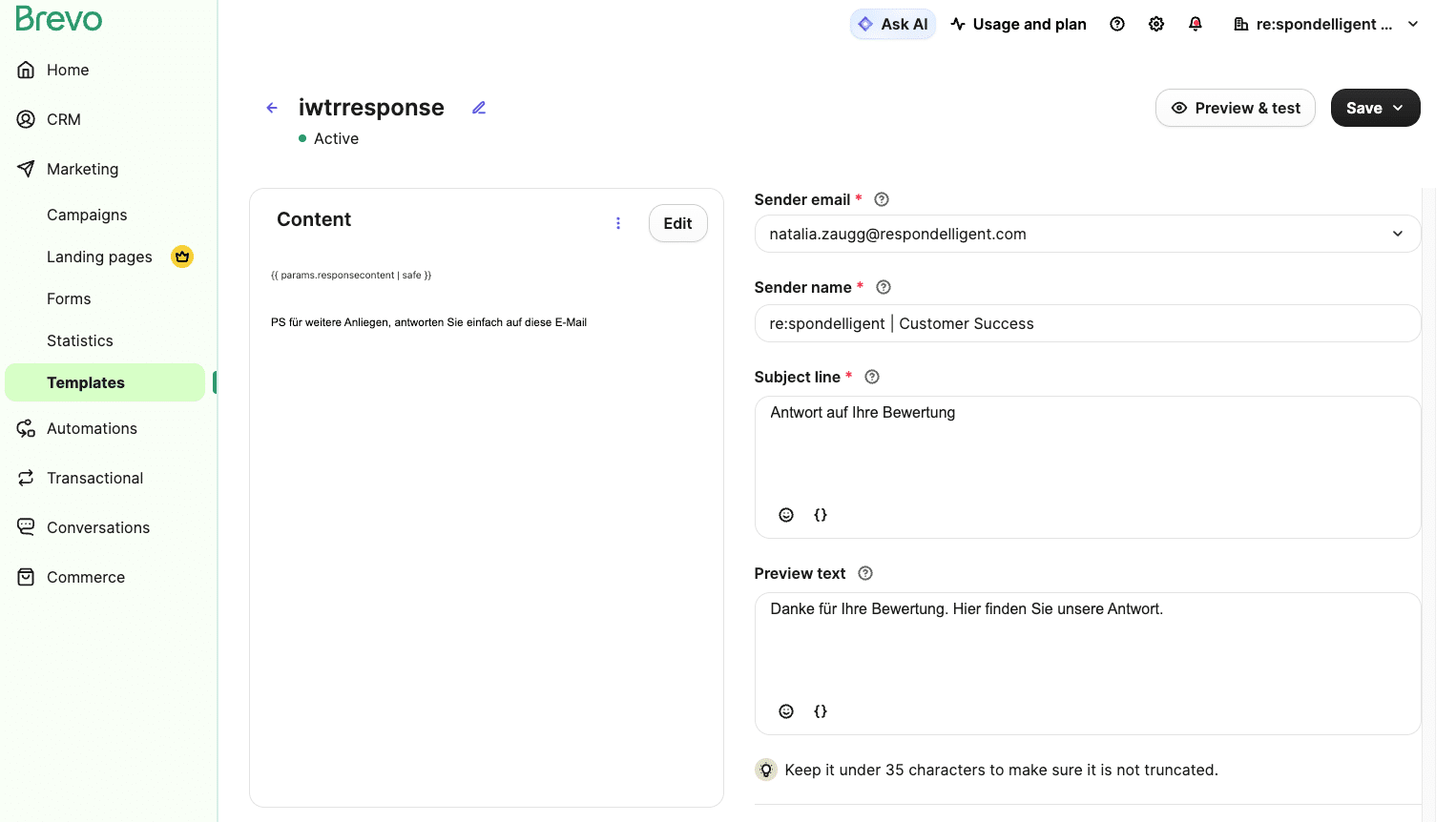
Switch back to Brevo and navigate to Marketing → Templates. Create a new template there.
Please note the following requirements:
- Template name:
The name must be exactlyiwtrresponse - Content placeholder:
Insert the placeholder{{ params.responsecontent | safe }}at the desired location in the template. This is where your response from re:spondelligent will be automatically inserted into the email.
The sender, subject line, preview text, and the remaining design of the template – such as an email footer with your logo or contact details – can be customized freely to suit your preferences.
Responding to Reviews by Email
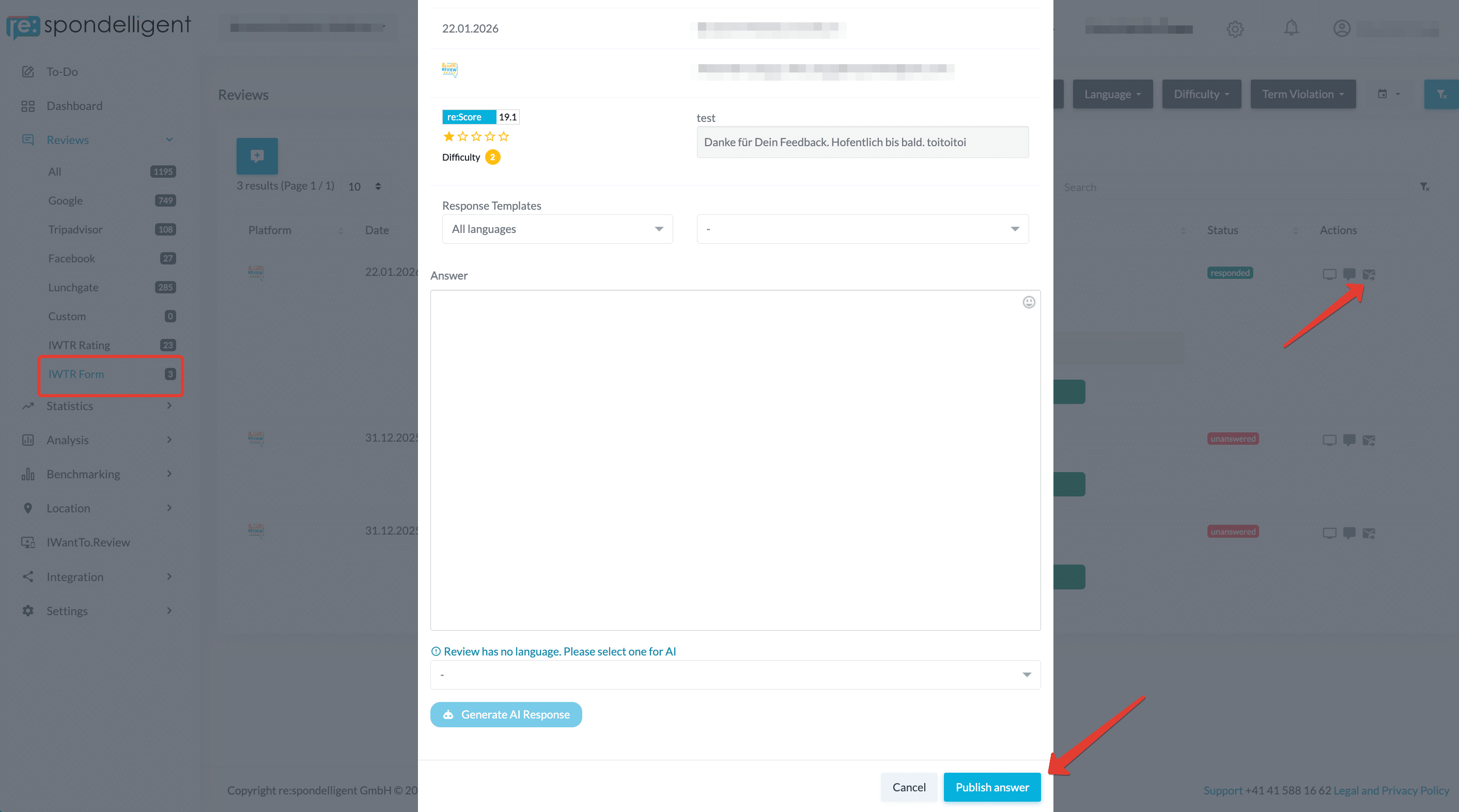
All set! Go back to re:spondelligent – for reviews of the type IWTR Rating and IWTR Form where the guest has provided an email address, you’ll now see a new icon (📩). Click on it to open the response dialog. There, you can write your response, or use our Smart Response Templates and AI response suggestions.
Once you send the response, your text is automatically inserted into the placeholder in your Brevo template, the email is sent to the guest, and the review status in re:spondelligent is set to responded.
Tip: Create a test review on IWantTo.Review using your own email address to run through the entire flow before going live.