IWantTo.Review Voucher
Would you like to reward your guests for their feedback while simultaneously collecting valuable guest data for your CRM activities? Our voucher feature enables you to do both – seamlessly integrated via Leat.
How it works:
When guests submit their feedback via IWantTo.Review, you can automatically offer them a voucher as a thank you. Leat handles the complete voucher management:
- Management of your promotions and vouchers (quantity, expiration date, conditions)
- Collection and storage of guest data for future campaigns (e.g., loyalty programs)
- Direct redemption of vouchers in your POS system – without media disruption
Benefits at a glance:
✓ Higher feedback rates through attractive rewards
✓ Build a valuable customer database
✓ Seamless integration into your existing systems
✓ Professional voucher management without additional effort
This feature is currently available to all Leat customers. If you’re not yet a Leat customer and are interested, please contact us directly.
Leat Integration
To use the voucher feature, first connect IWantTo.Review with your Leat account. You’ll need an access token for this.
How to create your access token:
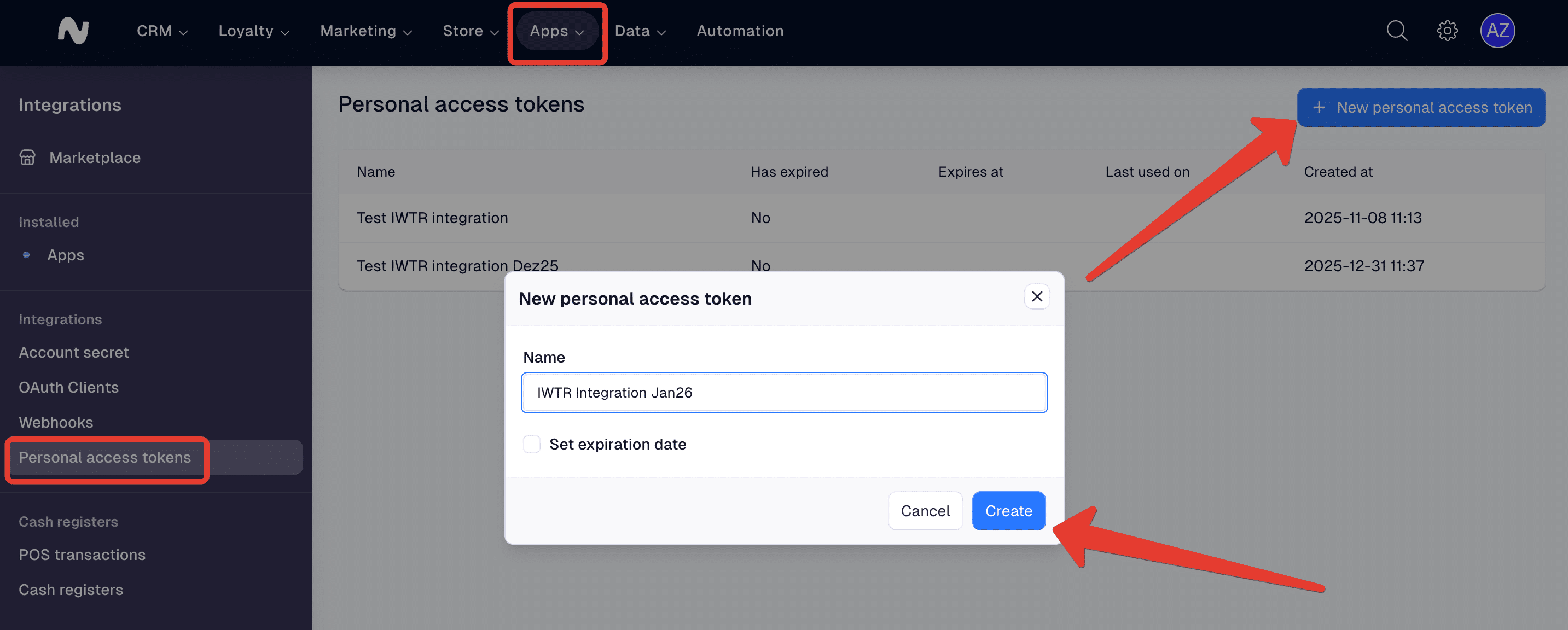
- Log in to your Leat account
- Navigate to Apps → Integrations
- Click on Personal access tokens
- Create a new token (e.g., named “IWTR Integration”)
- Important: The token is only displayed once – copy it immediately
Add token in IWantTo.Review:
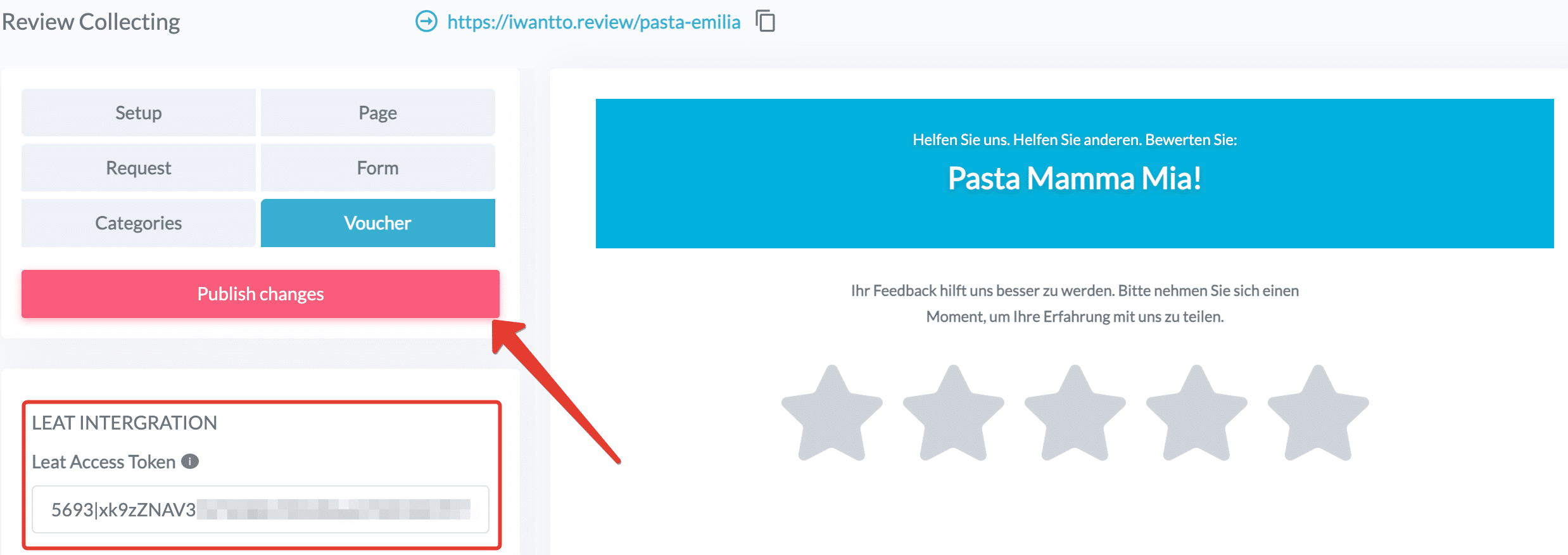
Paste the copied token into IWantTo.Review under Leat Access Token and save the token by clicking “Publish Changes”. All additional settings will then be displayed in IWantTo.Review.
Create Promotion for Vouchers
Now create the promotion that your guests will receive as a reward for their feedback. You can either create a new promotion in Leat or use an existing one.
How to create a new promotion:
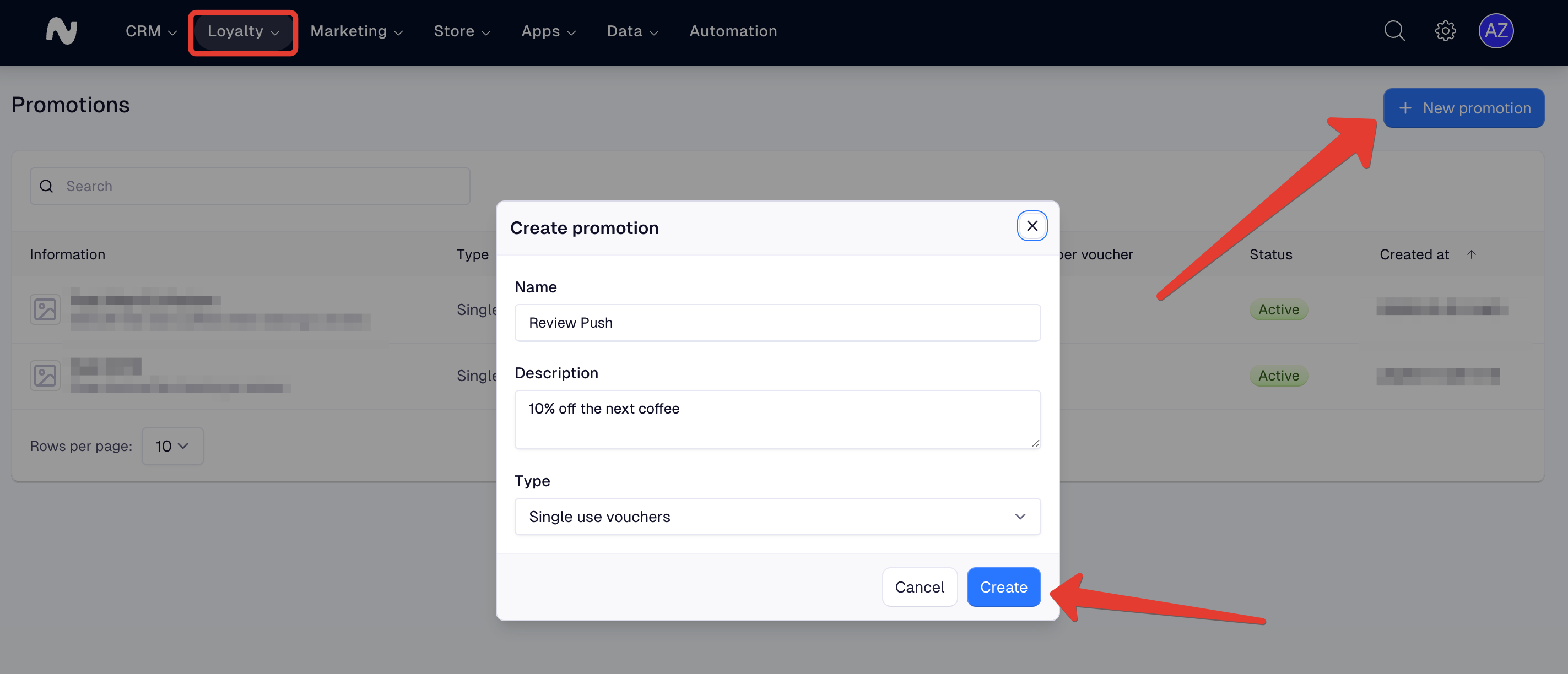
- Navigate to Loyalty → Promotions & Vouchers
- Click on + New promotion
- Configure the following settings:
- Name: e.g., “Feedback Thank You 10% Discount”
- Description: Brief description for internal use
- Type: Choose between:
- Single Use Voucher – Voucher can only be redeemed once
- Multi Use Voucher – Voucher can be used multiple times
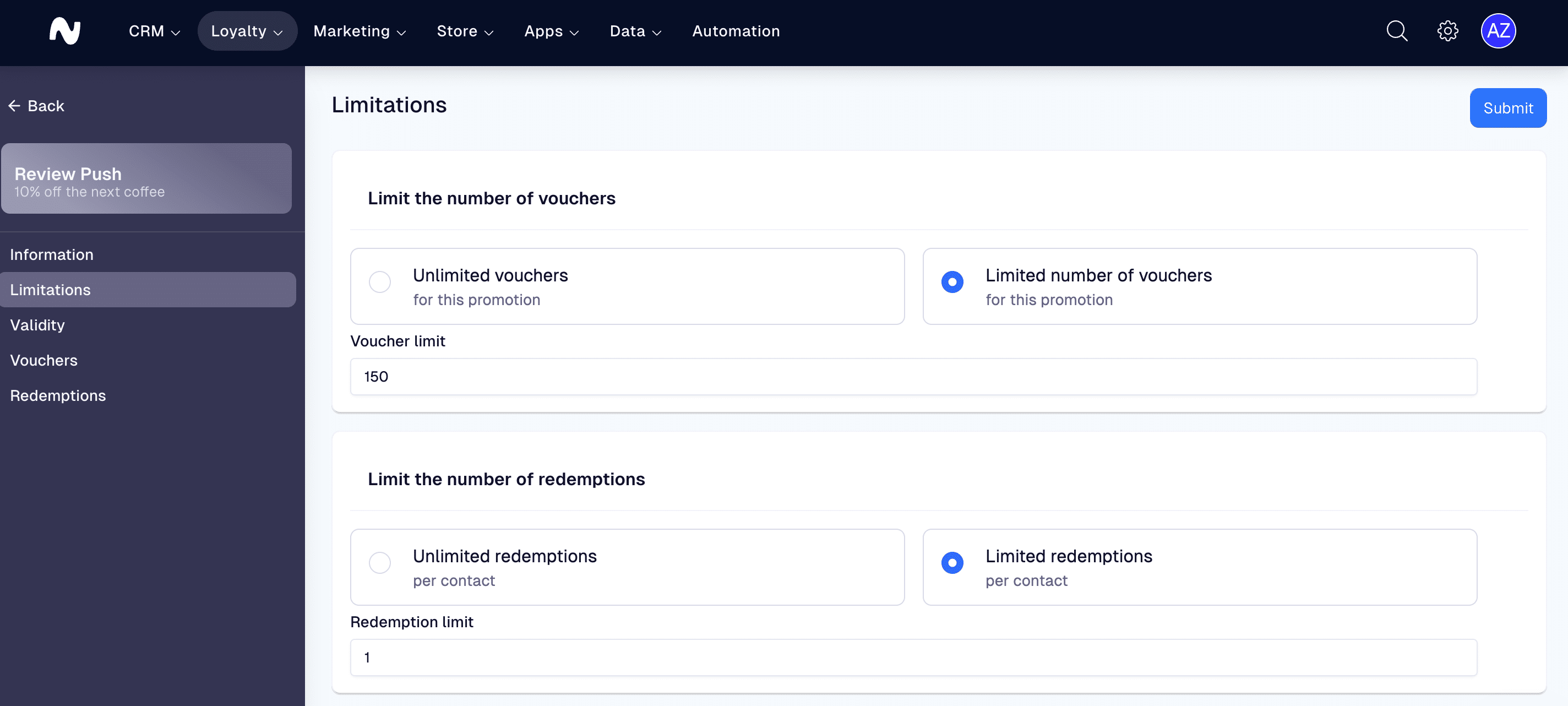
After creating the promotion, configure the important parameters for voucher management.
How to customize your promotion:
- Click on the created promotion
- Set limit: Maximum number of vouchers that can be redeemed in total – this keeps your costs under control
- Validity period: Define the expiration date of the vouchers
- Usage per contact: Specify how many vouchers a single guest can redeem for this promotion – this prevents abuse
Tip: Start with conservative limits and adjust them based on your experience.
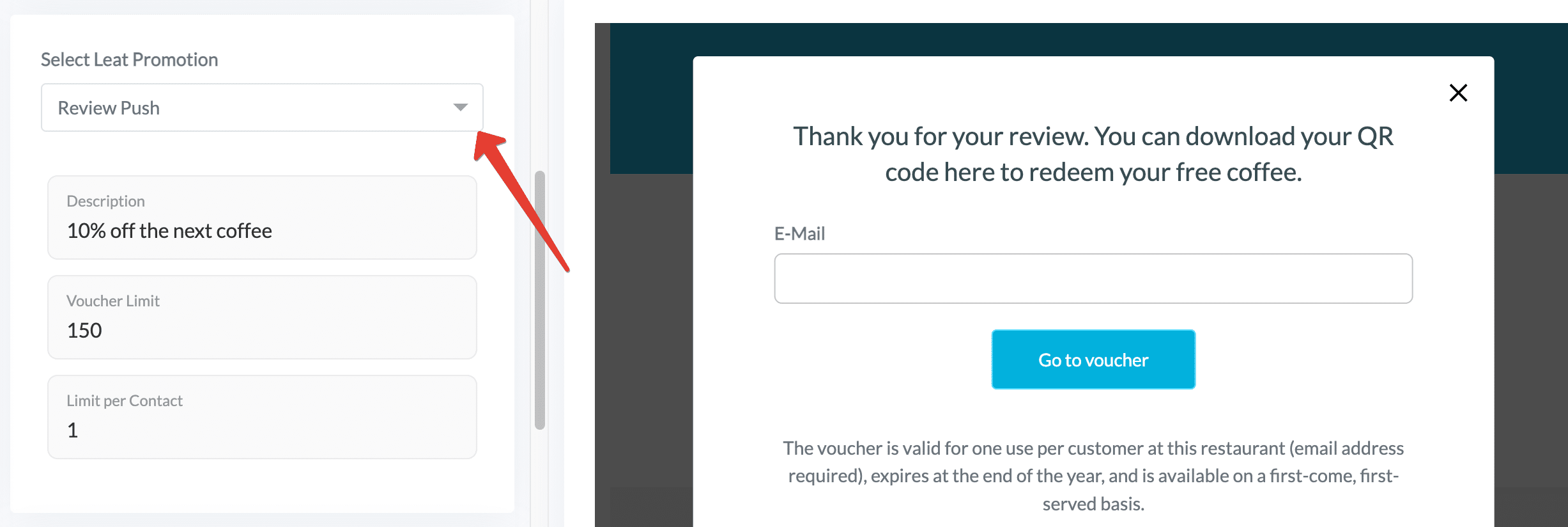
Activate promotion: Now switch back to IWantTo.Review and select the created promotion from the dropdown menu. Save the settings.
Activate promotion: Now switch back to IWantTo.Review and select the created promotion from the dropdown menu. Save the settings.
Activate Vouchers
For security reasons, vouchers are disabled by default to prevent accidental distribution.
How to activate voucher distribution:
Select from the dropdown on which pages vouchers should be offered:
Option 1: Only on the request page
Option 2: Only after completing the form
Option 3: On both pages (recommended)
Good to know: You can adjust this setting at any time if you want to compare the performance of different options.
Request on the request page
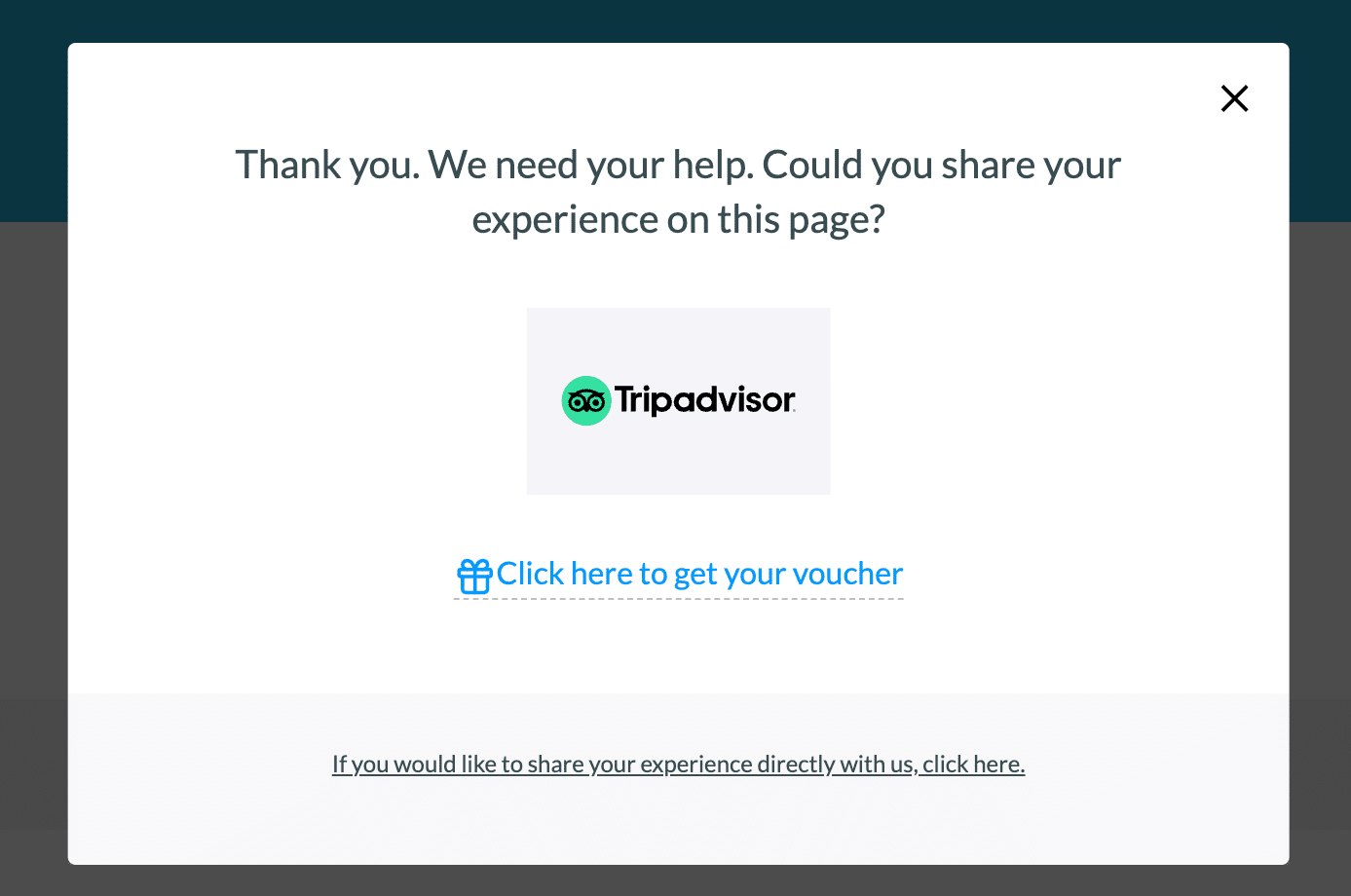
Request after completing the form
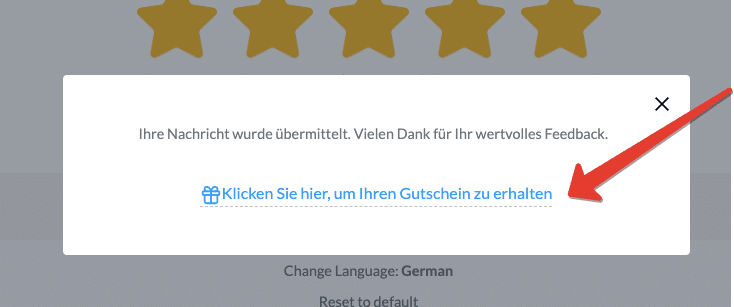
Customize Texts
As you’re accustomed to with IWantTo.Review, you have full control over all voucher feature texts.
How to customize the texts:
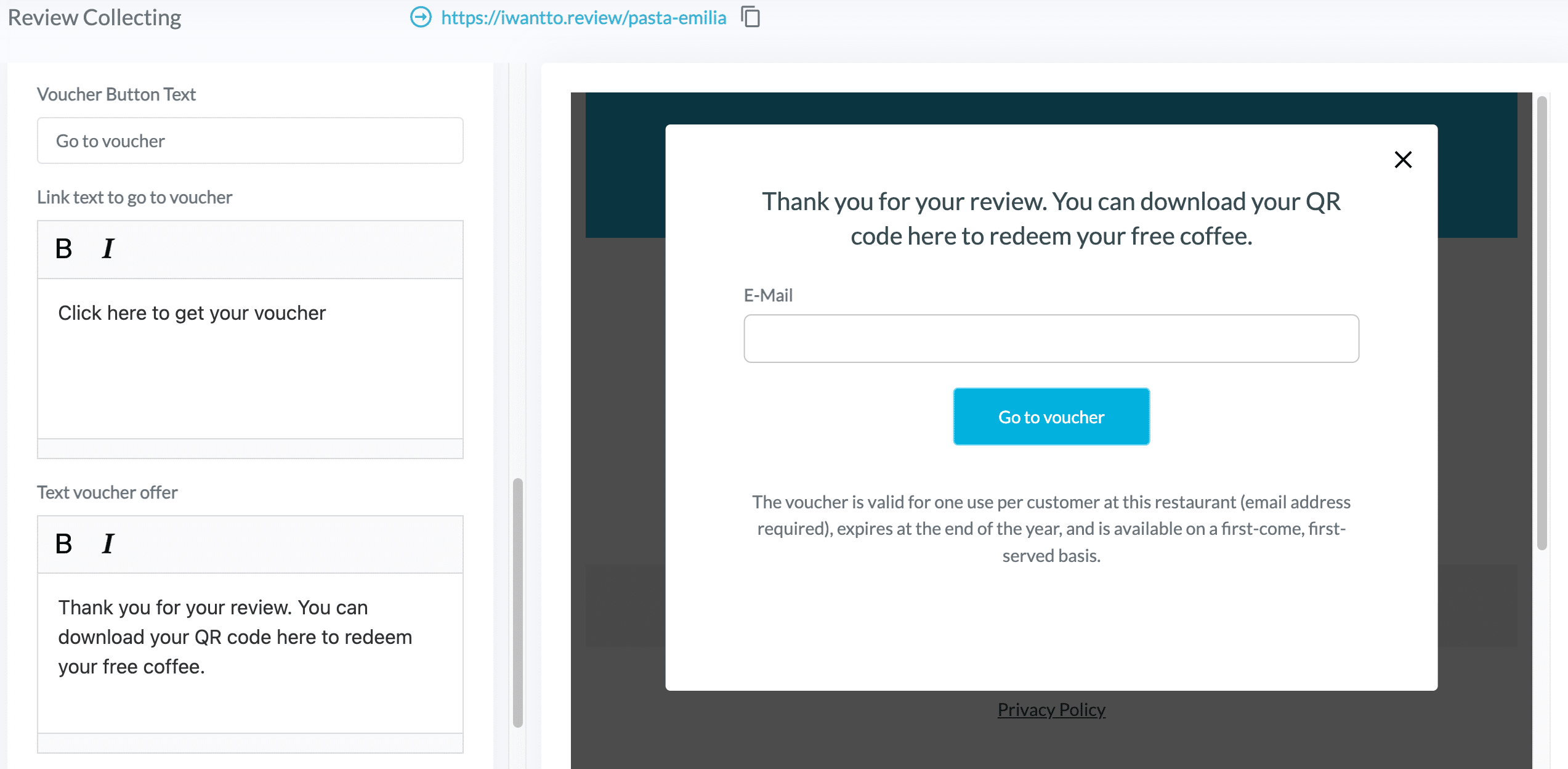
- Edit the texts directly in the language of your IWantTo.Review page
- Customize the following elements as desired:
- Call-to-action button
- Link text to voucher
- Voucher offer text
- Voucher details text
- Preview: Check in real-time how your texts will appear to guests
- Click “Publish Changes” to save all customizations
Multilingual: If users select a different language, the voucher texts are automatically translated – just like the rest of your IWantTo.Review page.
Tip: Clearly and attractively communicate the benefit (e.g., “Secure 10% off your next visit now”).
Voucher Redemption
Your promotion is now live! Here’s how the process works for your guests:
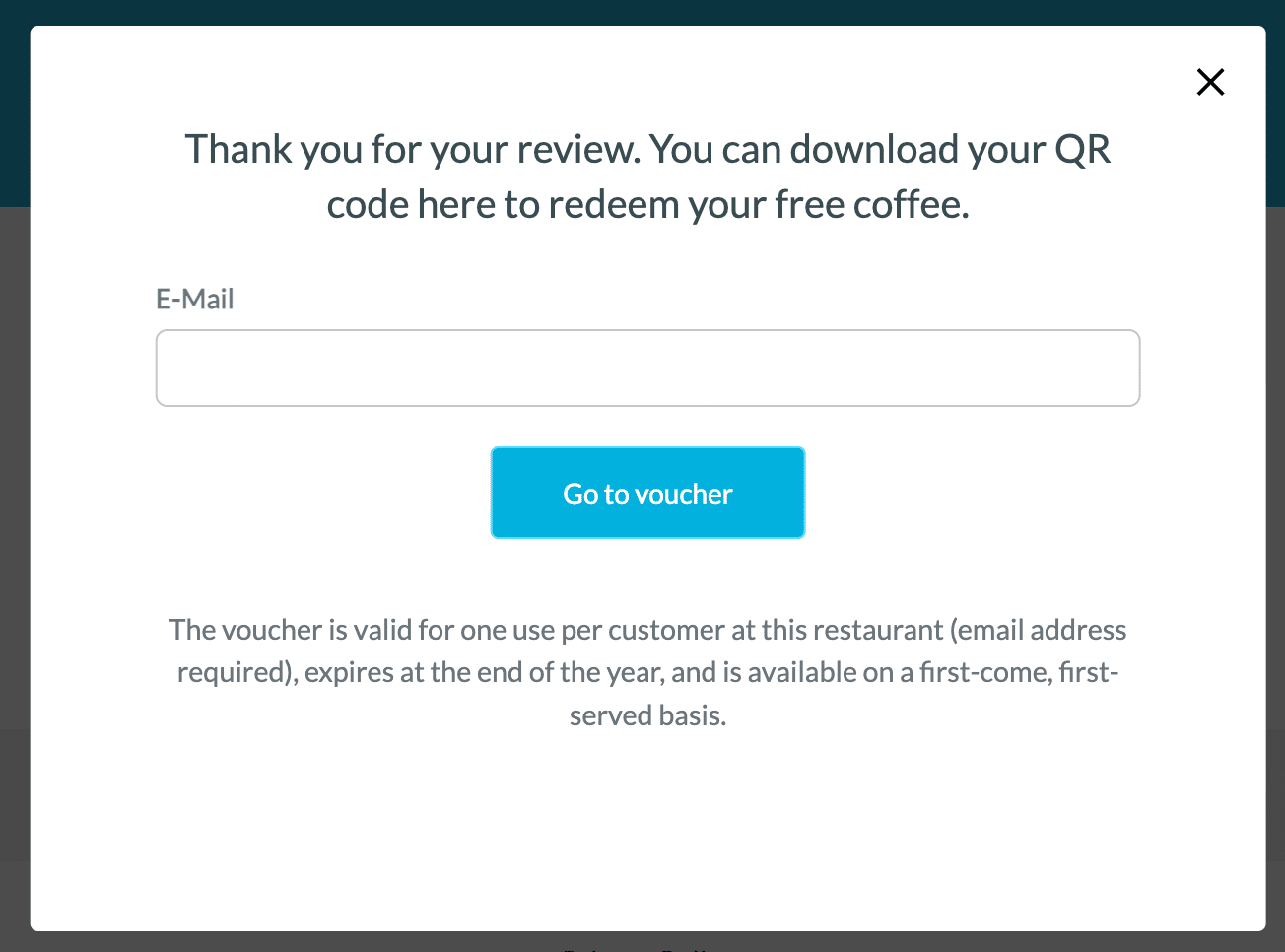
1. Request voucher. When a guest clicks “Get Voucher,” they’ll be prompted to provide their email address.
Why email address?
- The field is technically optional – a QR voucher can be created without an email
- However, an email address is required for redemption via Leat
- That’s why we ask for it upfront – to make it as easy as possible for your guests
- The email address is automatically stored in your Leat account
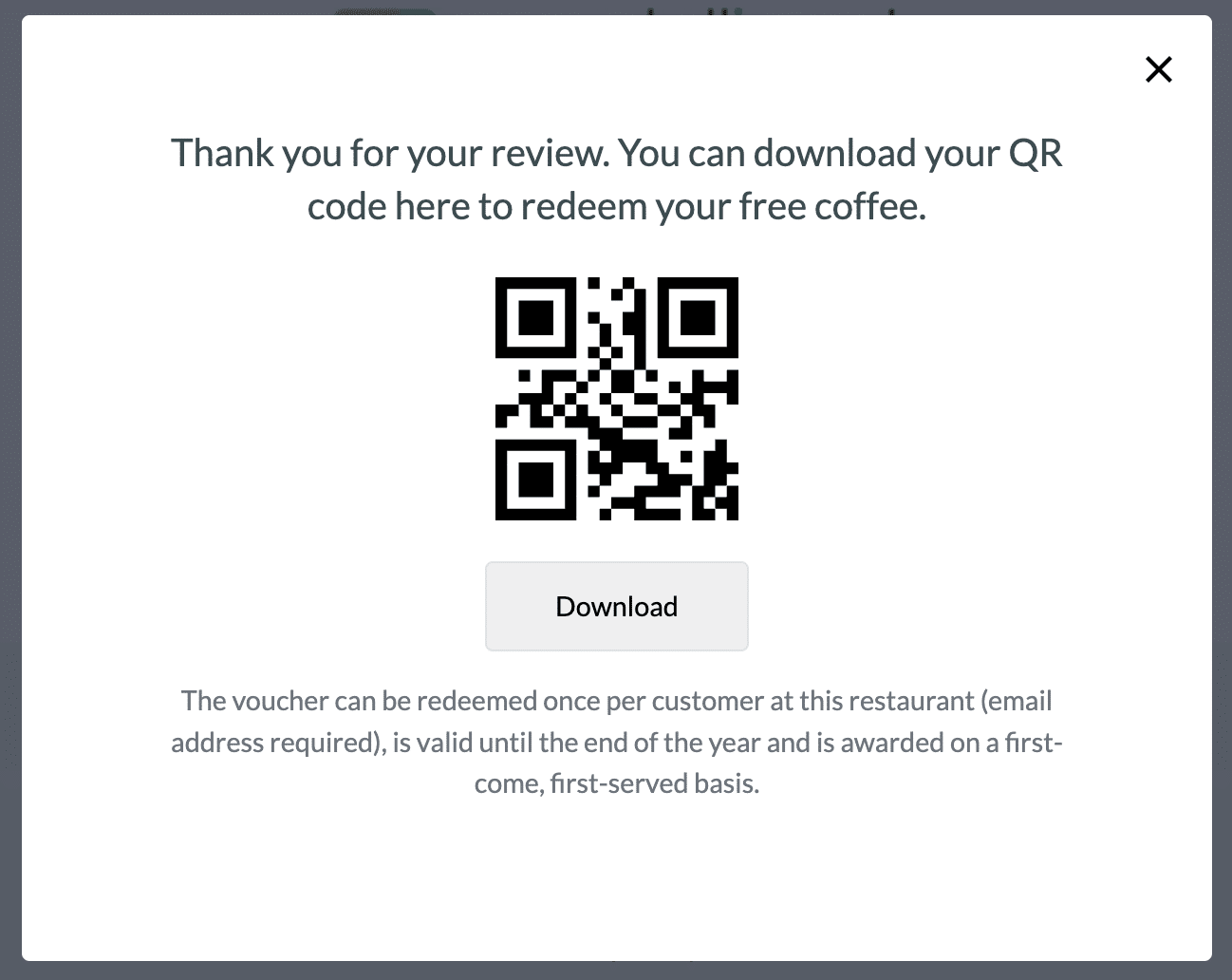
2. Generate QR code. After clicking “To Voucher,” a QR code is automatically created that the guest can download directly and show to your team for scanning.
3. Redeem in POS system. The voucher is redeemed via Leat directly in your POS system – without manual effort.
Questions about redemption?
For questions about voucher redemption or connection to your POS system, please contact your Leat representative directly.