Manage updated Google reviews
Manage updated Google reviews
Google allows guests to update their reviews at any time. Unlike many other systems, re:spondelligent automatically detects these updates and displays them separately—including the previous response and the full review history. This allows you to decide whether your existing response is still appropriate or if you would like to update it.
Where to find updated reviews
Updated reviews appear in two locations:
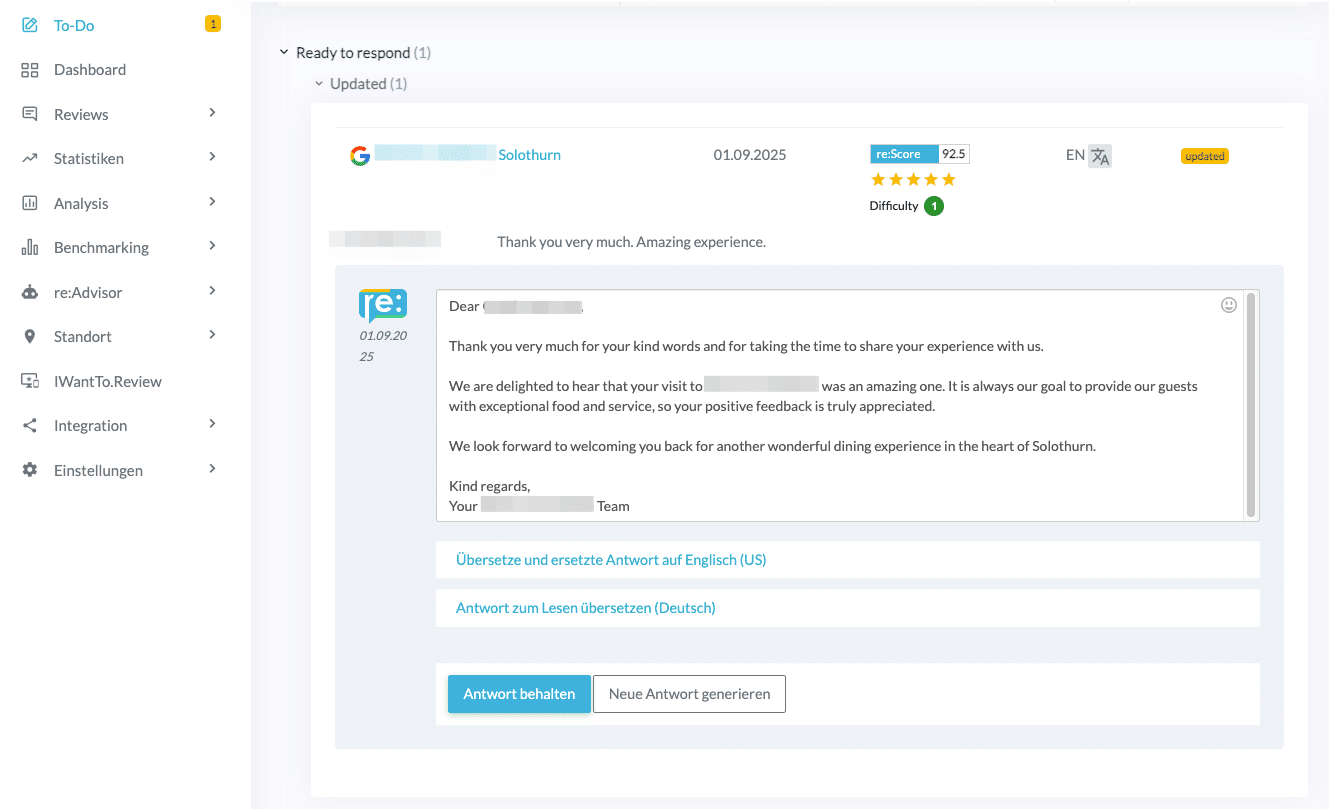
- To-Do: Within the ‘Ready to respond’ section, there is a dedicated collapsible ‘Updated’ area. These reviews are included in the overall To-Do badge number.
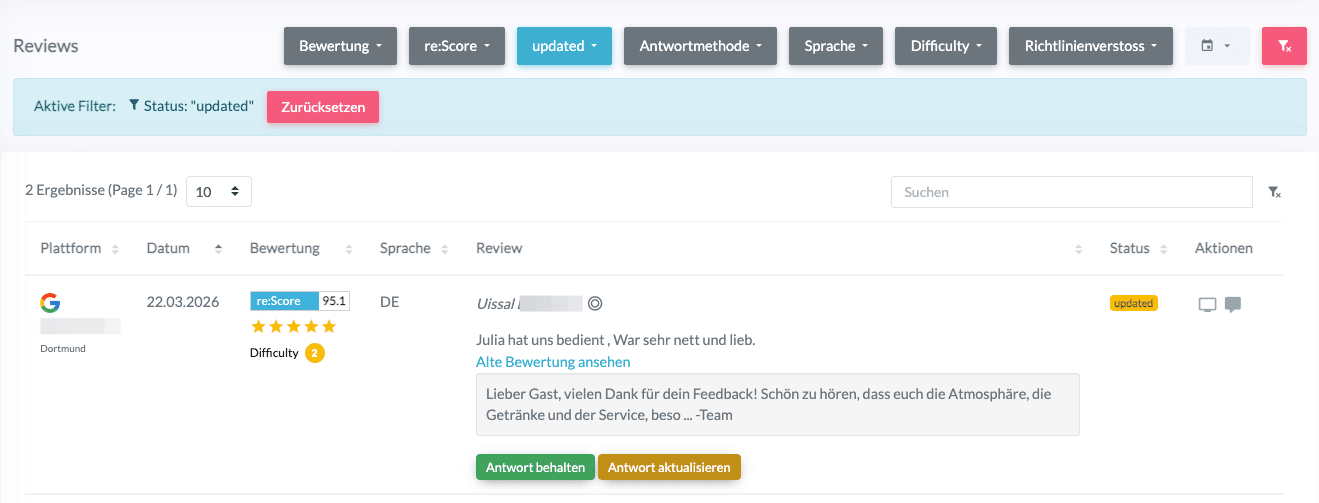
- Review list: Filter by ‘Updated’ status to view all updated reviews. The previously published response is displayed directly in the list.
View review history
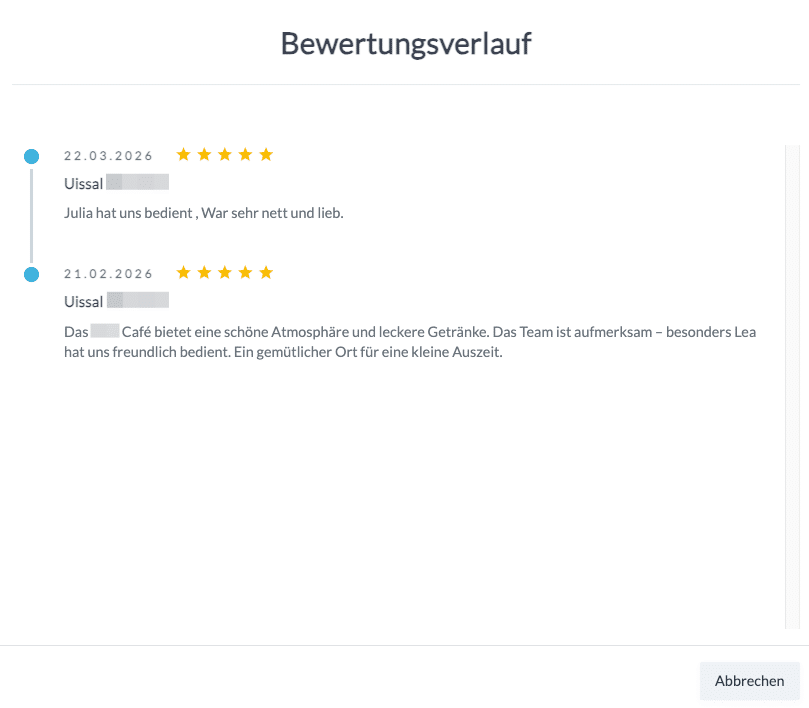
For every updated review, you will find a ‘See old review’ link. Clicking the link opens the review history with all previous versions, including the username, date, star rating, and review text.
Editing updated reviews in To-Do
Open the ‘Updated’ section under ‘Ready to respond’. You will see the new review as well as the previously published response in the text field. You have the following options:
Keep response: If your existing response is still appropriate, click ‘Keep response.’ The review will be marked as answered internally and will disappear from your To-Do list. No new response will be sent to Google—the existing one remains live and unchanged.
Edit response: You can edit the text directly in the text field. As soon as you make changes, the ‘Save draft’ button will appear. Then, click ‘Publish response’ to post the new version to Google.
Generate new AI response: Click ‘Generate new response’ to create an AI-generated reply based on the updated review. You can then adjust the text if needed and click ‘Publish response’ to post it to Google.
Note: The ‘Publish response’ button only appears after you have edited the text or generated a new response.
Editing updated reviews in the review list
Filter the review list by ‘Updated’ status. The previously published response is displayed directly inline. You have two options:
Keep response: Click ‘Keep response’ to accept the existing response. The review will be marked as answered.
Update response: Click ‘Update response’ to open the editing window. There, you can see the published response and edit it manually, generate a new AI response, or use a response template. Clicking ‘Publish response’ will post the new version directly to Google.