Review List
On the left-side menu, choose Reviews to see your review list. You can choose to see all the reviews that were written about your business or the reviews written on a specific platform.
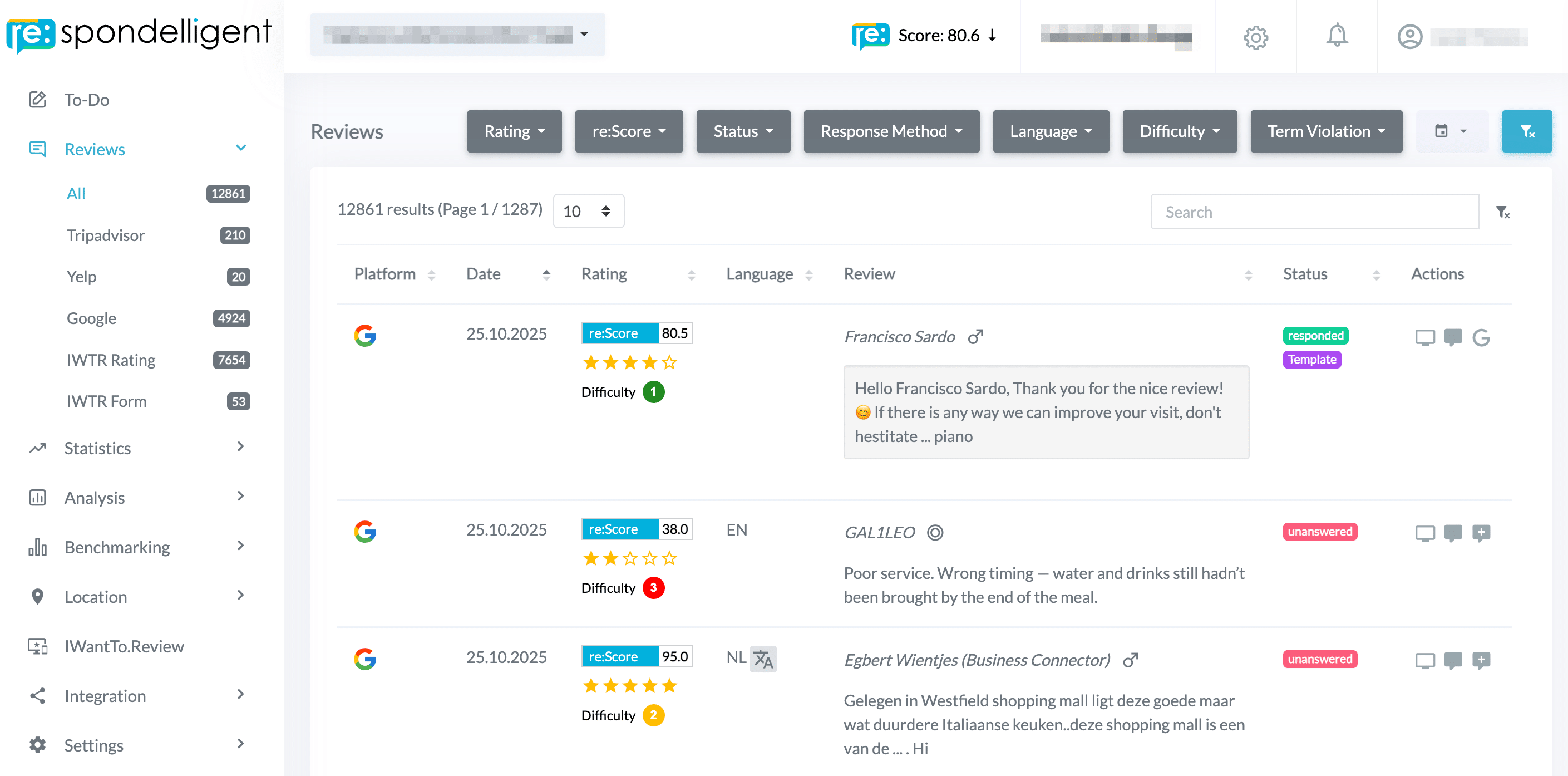
1. Filters
Use the filter options to narrow down your review list and quickly find the reviews you need. Each filter helps you maintain oversight and manage your reviews more efficiently.
Rating: Filter by star rating from 1 to 5 stars. For platforms with a “Yes/No” recommendation system like Facebook, you’ll see + (positive recommendation) and – (negative recommendation).
Status: The status shows the processing state of a review:
- Responded/Not Responded: Whether the review has received a response
- Needs Feedback: Reviews that require review or feedback
- Ready to Respond: Drafts that have been finalized and are ready to be published
- Declined: Drafts that have been declined and need adjustment
- Read-only: For platforms that don’t allow responses, or for reviews you choose not to respond to
- Spam: Marks suspicious reviews that don’t require a response and can be reported to the platform for removal
These status filters are especially helpful when working in a team to clearly communicate responsibilities and processing stages.
Response Method: The status shows how a review was answered:
- Template: Response based on a template
- Author: Manually written response
- AI: AI-generated response
- External: Used for IWantTo.Review and custom reviews when you respond to guests outside of the re:spondelligent platform, for example, via email.
re:Score & Difficulty Score: Every review automatically receives a re:Score calculated based on different criteria, as well as a Difficulty Score that indicates how difficult it is to respond to that review. Use these filters to focus on the most important or most challenging reviews.
Language: Filter reviews by the language they were written in – ideal for international locations or multilingual teams.
Term Violation: Our Smart Flagging System automatically marks reviews with red flags when they likely violate the platform’s terms and conditions. We recommend reviewing these and reporting them for removal if appropriate.
Date Range: Limit results to a specific time period or choose a custom date range.
Click on the desired filter option and select the appropriate value. The list will update immediately. To remove all filters, click the blue button on the right.
Tip Combine filters to see concrete results and identify irregularities.
2. Review List
Below the filter options and above the review list, you can see the total number of reviews loaded. Here you can choose the number of reviews you would like to see on the page.
On the right side, there is a search bar that you can use to search for a specific review. Enter a keyword, for example, “Service”, and all the reviews containing “Service” will show up.
You can organize your review list according to your needs. Click on the column headline to sort in ascending or descending order. For example, you can see the reviews with the lowest re:Score by clicking on the Rating. Click on the Review to collapse the review text.
Reviews with text can be translated into the language of your choosing. You can choose the language in the User settings. To translate the review, click on the Language sign in the Language column.

Reviews are automatically tagged with demographic labels: Gender (female, male, or unknown) and Visit Frequency (first-time visitor or repeat customer). View detailed statistics and charts in the Statistics > Reviews section.
These insights help you identify guest behavior patterns, understand which segments are most engaged, and optimize your service based on real data. It is a unique feature, specifically designed for hospitality and gastronomy businesses.
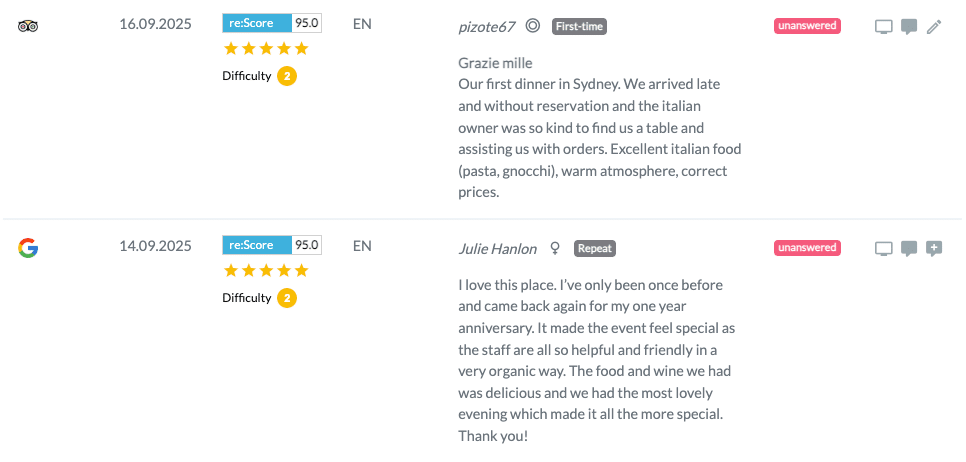
The available Actions on the Reviews page:

|
By clicking on this symbol you can see the complete review and the answer to it |

|
Click on this symbol to go to the original review |

|
Click on this symbol to go to the business page |

|
Click on this symbol to write and publish a response to the review |
 |
Click on this symbol to edit a response on Google |

|
Click on this symbol to generate an AI response |
Tip Filter by Status is ideal to create a to-do list for yourself and see which reviews require action.
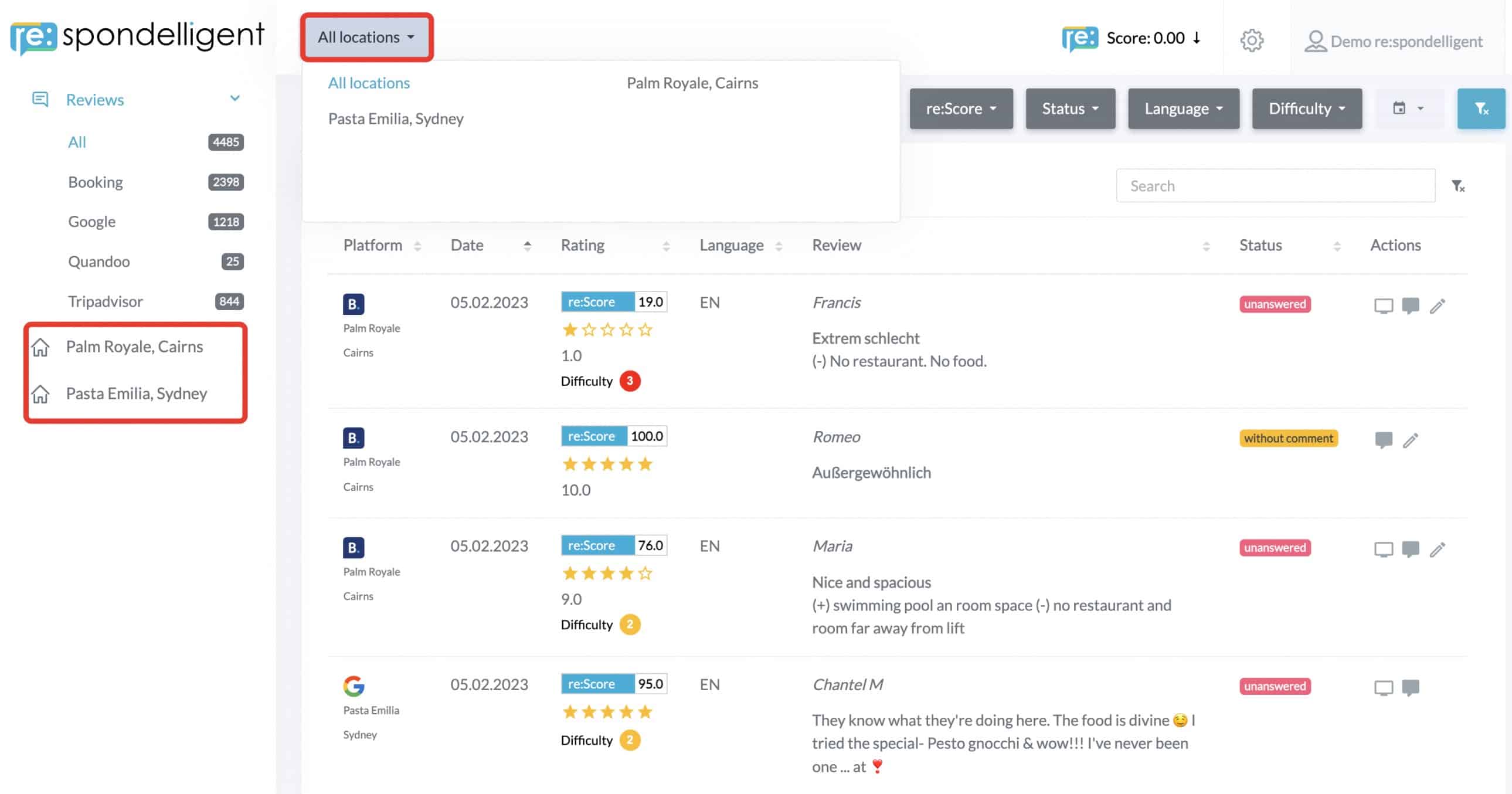
3. Multiple Locations
If you are managing multiple locations, by default, you will see the view for all locations when you log in. To open a specific location or group, click on All locations at the top of the page and then choose the one you would like to see. Alternatively, you can choose the location from the list in the left menu bar.