
AI Responses – Test & Copy to Locations
Test AI Responses & Copy to Locations
Under Location → AI Responses, two additional features are available: testing your AI responses and copying your settings to other locations.
Test AI Responses
Once you have added at least one review/response pair, the “Test AI” button appears at the top of the page – both in the “Review/Response Pairs” tab and the “Additional Information” tab.
This feature allows you to check how your AI responses currently perform. When you click “Test AI”, five randomly selected, real reviews from your location are loaded and an AI response is generated for each.
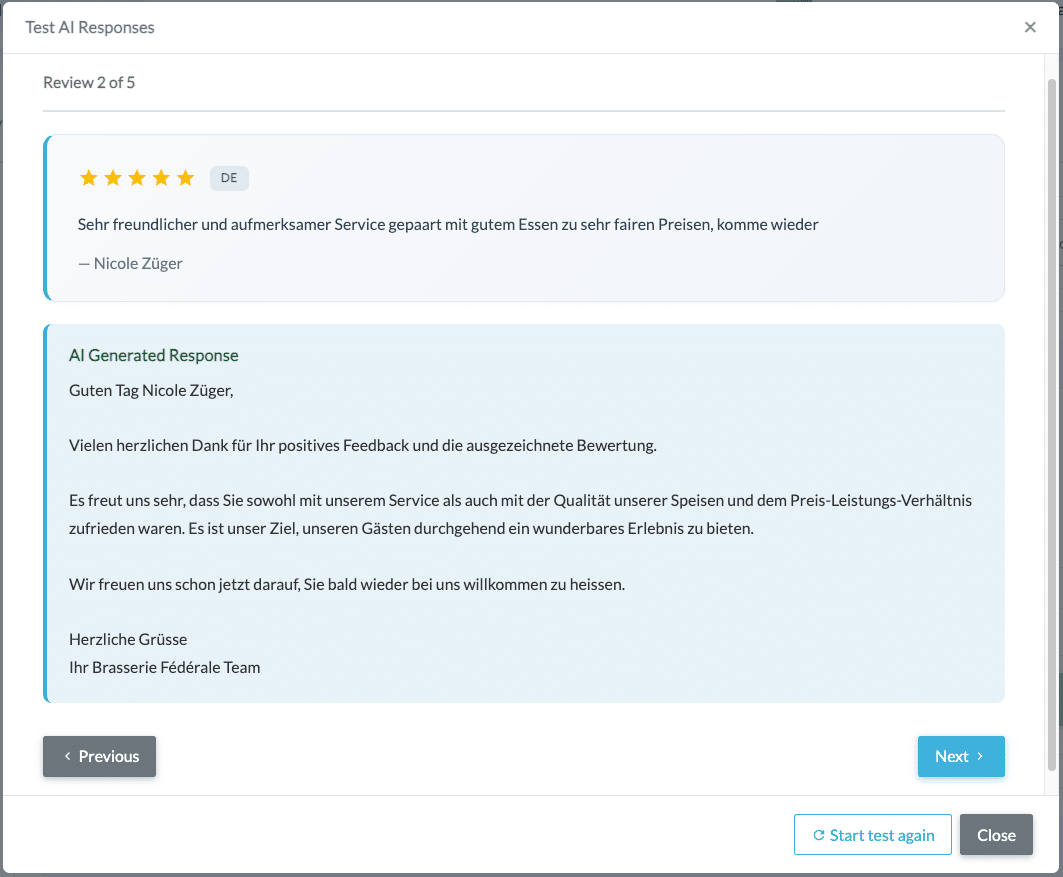
How to use the test feature:
- Click “Test AI” to start the test.
- Five reviews are displayed one after another, each with the generated AI response.
- Use “Next” and “Previous” to navigate between the five test results.
- Click “Start test again” to load five new random reviews and generate new responses.
- Click “Close” to end the test.
Tip: Use the test feature regularly to check the progress of your AI – especially after adding review/response pairs or changing instructions. This way, you can immediately see whether your adjustments are having the desired effect.
Copy Settings to Locations
If you manage multiple locations, you can copy your review/response pairs and additional instructions to other locations. The “Copy to locations” button appears at the top of the page once you have access to more than one location.
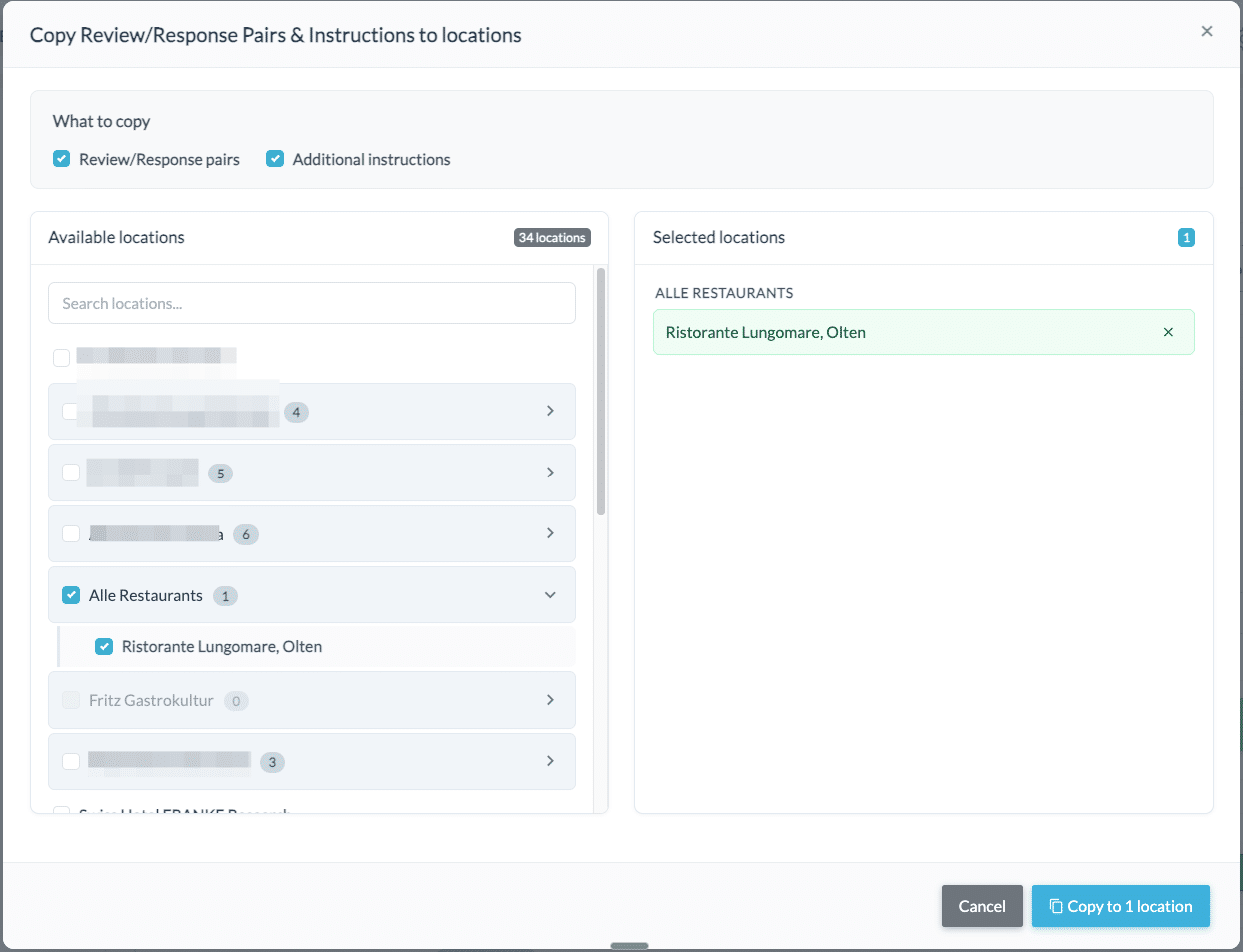
Step 1: Select content
In the upper section of the dialog window, under “What to copy”, select which settings should be transferred:
- Review/Response pairs: Your gold standard examples.
- Additional instructions: Your rules and instructions.
You can select both options individually or together.
Step 2: Select locations
On the left side, you can see all available locations, organized by groups. You can select individual locations or click on a group to select all associated locations at once. The selected locations appear on the right side, where you can also remove individual locations.
Note: When copying instructions, their status is also transferred. Active instructions remain active, disabled instructions remain disabled.
Step 3: Confirm copy
Click “Copy to X locations” to start the process. A confirmation will appear, as this action overwrites existing settings at the target locations and cannot be undone.
Important: Existing review/response pairs and instructions at the selected locations will be replaced by the copied content. Make sure the target locations do not contain any individual settings you wish to keep.