
AI Responses – Additional Information & Instructions
AI Responses – Additional Information & Instructions
In addition to review/response pairs, you can configure further settings under Location → AI Responses → Additional Information to optimize your AI responses. This page consists of two sections: General Information and Additional Instructions.
General Information
In the upper section of the page, you will find the general settings for your AI responses.
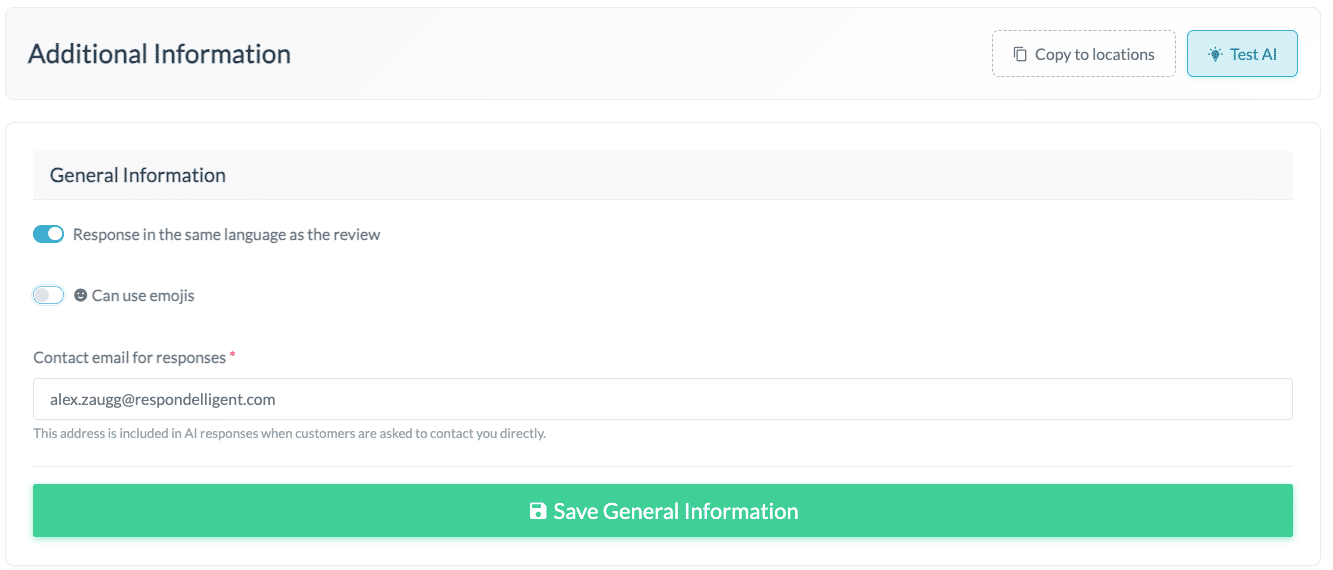
Response language
By default, the option “Response in the same language as the review” is enabled. This means: if a guest writes in English, the AI responds in English. If a guest writes in German, the AI responds in German.
If you prefer a different language rule, disable this option. A text field will appear where you can enter your custom language rule, e.g., “Respond to German reviews in German, respond to all others in English.”
Emojis
The use of emojis is disabled by default. If you would like to include emojis in your AI responses, enable this option. This is especially useful if you already use emojis in your review/response pairs – this keeps the style consistent. Even without emojis in the pairs, they will be used contextually when this option is enabled.
Contact email for responses
This field is mandatory (marked with *). Enter the email address that customers can use to contact you with questions. This address is included in AI responses when customers are asked to contact you directly – for example, in cases of negative reviews where a personal resolution is appropriate.
AI responses cannot be generated without a valid email address.
Important: Changes in the General Information section must be saved using the “Save General Information” button.
Additional Instructions
Additional instructions are rules that fine-tune your AI responses beyond what your review/response pairs can teach. While the pairs define the basic style and tone, instructions allow you to set specific guidelines for particular situations or content.
Typical use cases:
- Style rules: “Keep responses under 4 sentences and avoid exclamation marks.”
- Reactive content: “When parking is mentioned in the review, highlight that free parking is available on-site.”
- Brand guardrails: “Never apologize for pricing; focus on value and experience instead.”
Example instructions for new users
When you first open the page and have not yet created any instructions, you will see three example instructions. These show you what types of rules are possible and serve as inspiration.
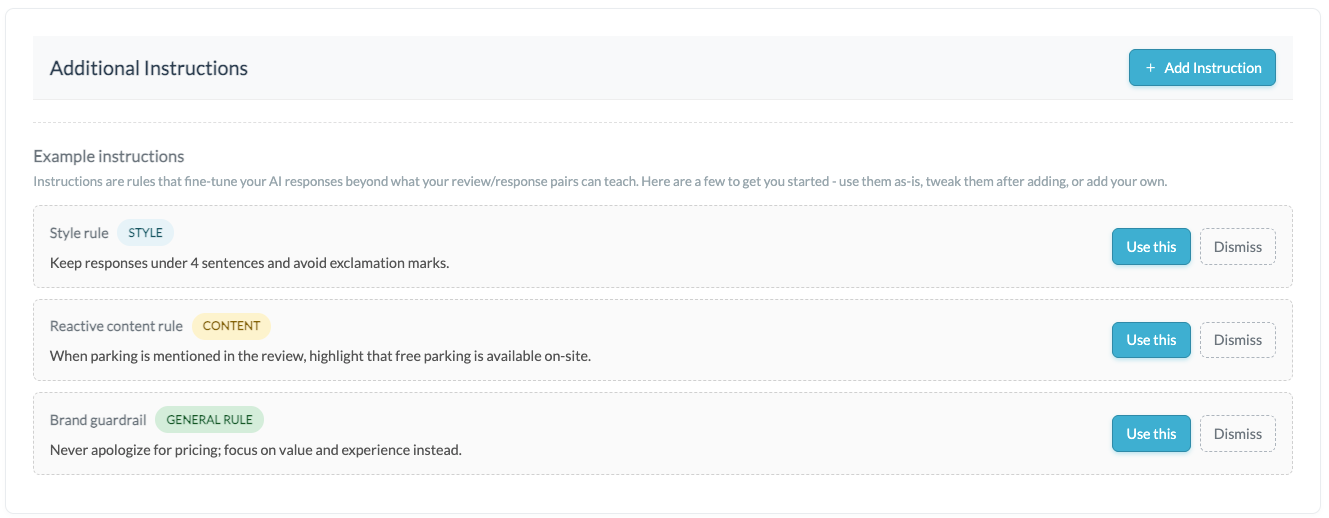
For each example instruction, you have two options:
- “Use this”: The instruction is added to your list as an active rule. You can edit or delete it at any time afterwards.
- “Dismiss”: The example instruction is hidden. Dismissed examples cannot be restored.
The example instructions disappear once at least one instruction has been used or dismissed, and you refresh the page.
Add instructions
To create a new instruction, click on “+ Add Instruction”.
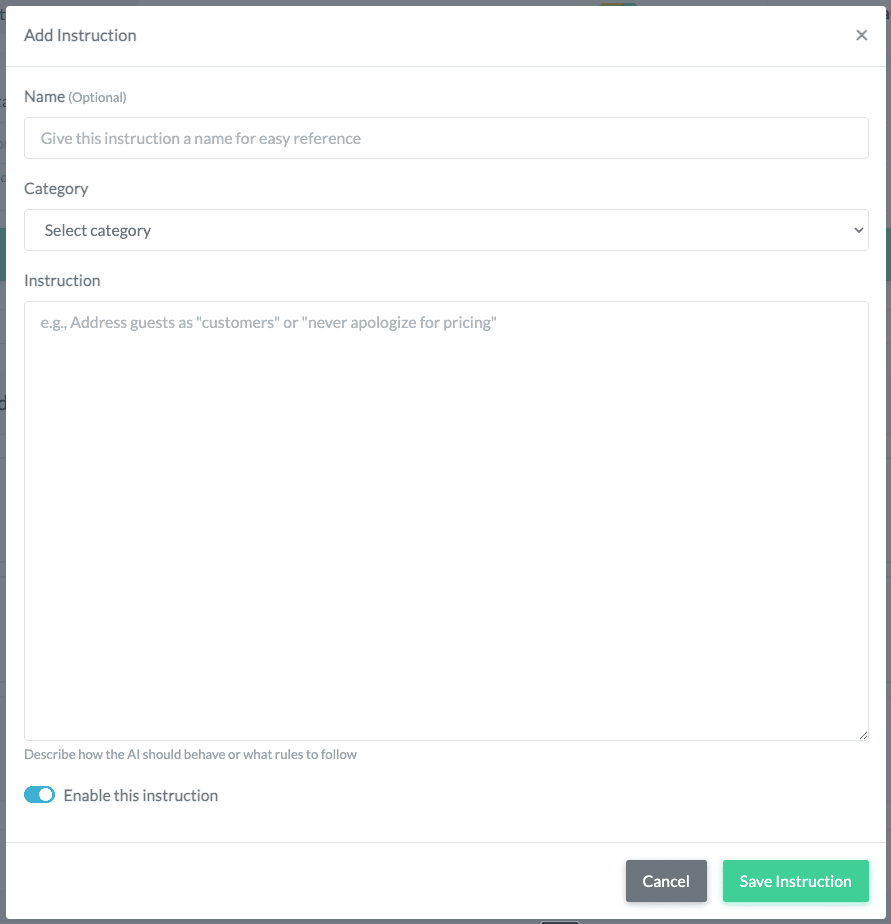
In the dialog window, fill in the following fields:
- Name (Optional): An internal name for easy reference (e.g., “Parking info” or “Tone of voice”). This name does not affect the AI response and is for your own reference only.
- Category: Select a category for the instruction (e.g., Style, Content, or General Rule). The category helps you organize your instructions.
- Instruction: Describe the rule the AI should follow. Write clearly and specifically – the more precise the instruction, the better the result.
- Enable this instruction: Determines whether the instruction is active. Active instructions are taken into account in the next AI response.
Click “Save Instruction” to create the instruction.
Note: Instructions are saved immediately when created or edited. Unlike General Information, no additional save step is required.
Manage instructions
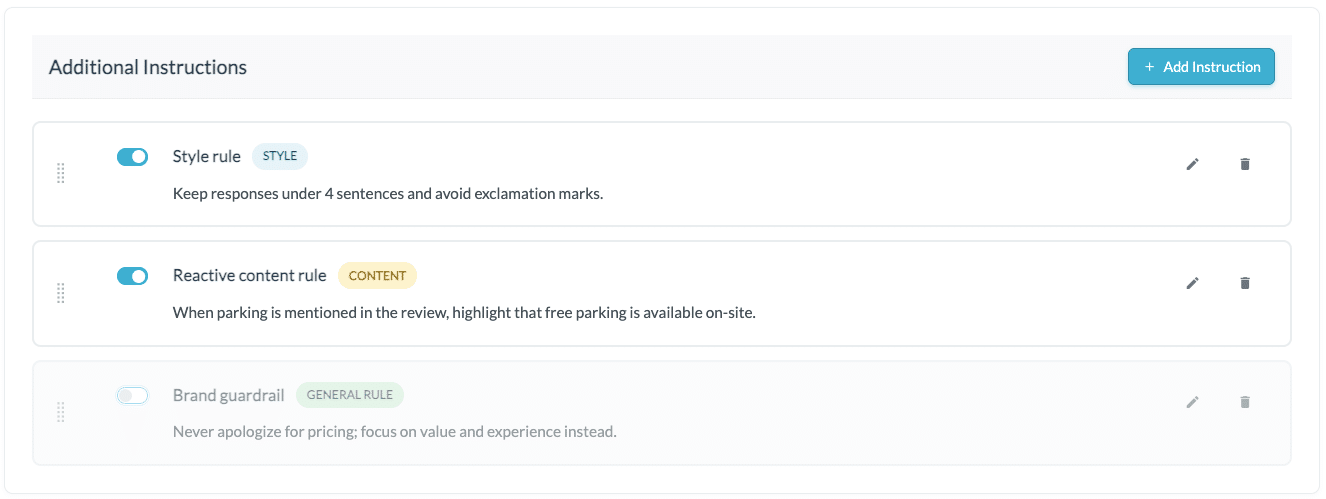
Your instructions are displayed as cards in a list. Each card shows the name, category, and instruction text. The following actions are available:
- Enable/Disable (toggle): Switch individual instructions on or off without deleting them. This is useful for seasonal rules or temporary offers that you may want to reactivate later.
- Edit (pencil icon): Opens the instruction for editing.
- Delete (trash icon): Permanently removes the instruction.
- Sort (drag and drop): Drag instructions into your preferred order to organize your list.