
Generate AI Responses
Generate AI Responses
re:spondelligent generates AI responses to your reviews – individually, in the right language, and based on your review/response pairs and instructions. Responses can be generated automatically overnight or triggered manually.
Automatic overnight generation
Once you are satisfied with the quality of your AI responses, you can have automatic generation activated. Contact our team to enable this feature. Once activated, AI responses are automatically generated overnight for all new reviews from the previous day. You will find them the next morning in To-Do, ready for review and publishing – without any manual effort.
Manual generation
You can also generate an AI response manually at any time. Navigate to Reviews in the left-side menu and select the review you would like to respond to. Click on the review in Actions to open the response window.
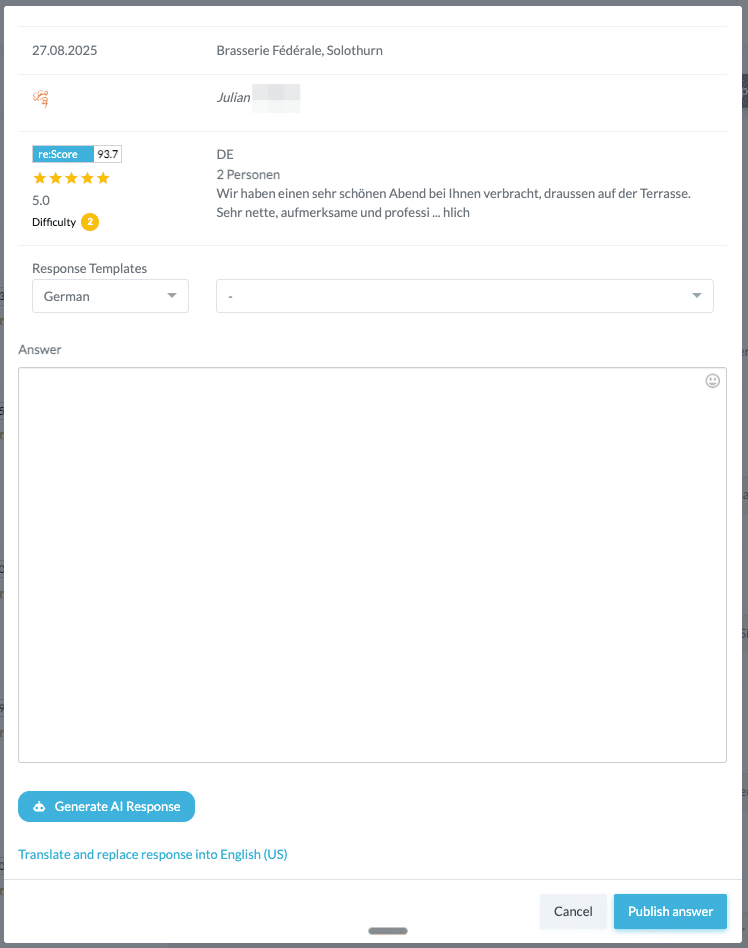
Click “Generate AI Response”. The AI will create a response within a few seconds, based on your review/response pairs and instructions.
If you are not satisfied with the generated response, you can click “Regenerate Response” to generate a new one. You can also edit the response manually in the text field at any time before publishing.
Save draft: As soon as you edit the response in the text field, a “Save draft” button appears. Click on it to save your changes without publishing the response immediately. The draft is preserved – if you close the window and reopen the review later, you will find your edited version. When publishing or copying, the current version from the text field is always used, including all your changes.
Publish responses
Publishing works differently depending on whether the platform supports direct publishing. Currently, direct publishing is available on Google, Facebook, and Lunchgate. On all other platforms, publishing is done via the copy workflow.
Direct publishing
On platforms with direct publishing, you can publish the response directly from re:spondelligent.
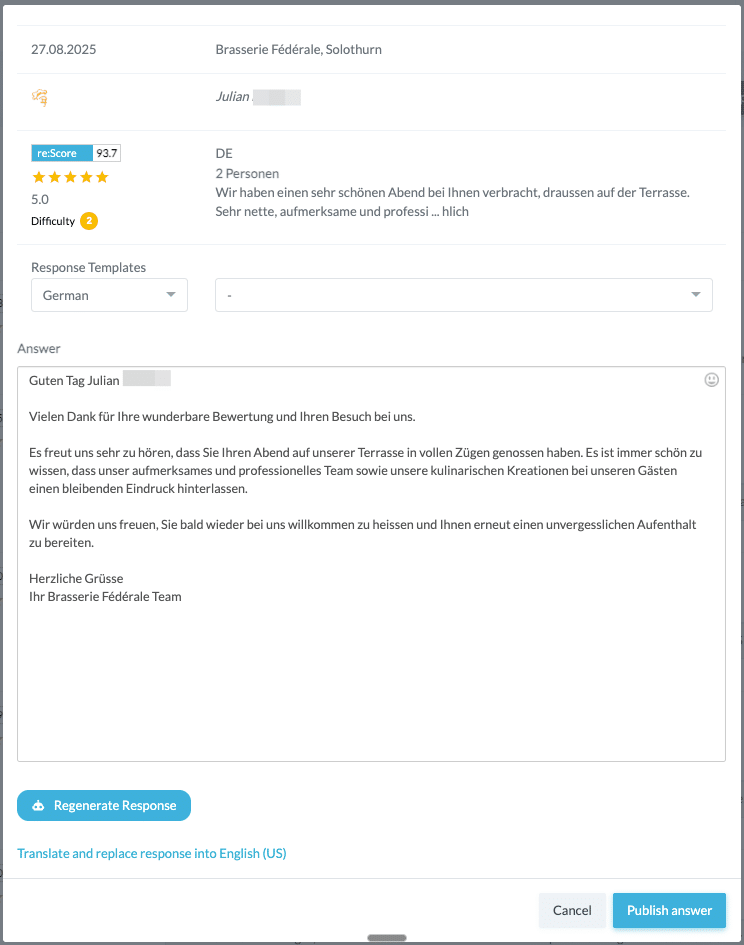
From the review list: Open the review and click “Publish answer” to publish the response directly on the platform. You can edit the response in the text field beforehand.
From the To-Do: In To-Do, you will find all reviews with generated responses under “Ready to respond”. Here too, you can edit the response and then click “Publish answer”.
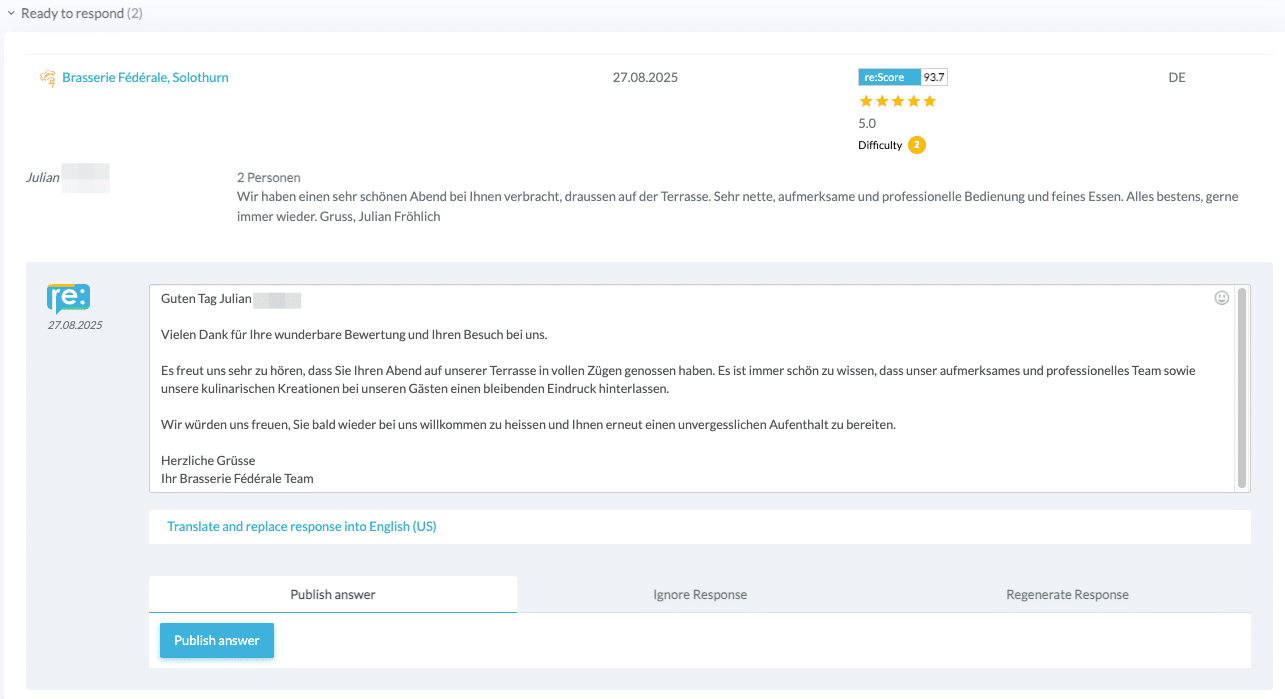
After publishing, the status of the review changes to “responded AI”.
Indirect publishing
On platforms such as TripAdvisor, Booking.com, and others, you need to copy the response and paste it on the respective platform manually.
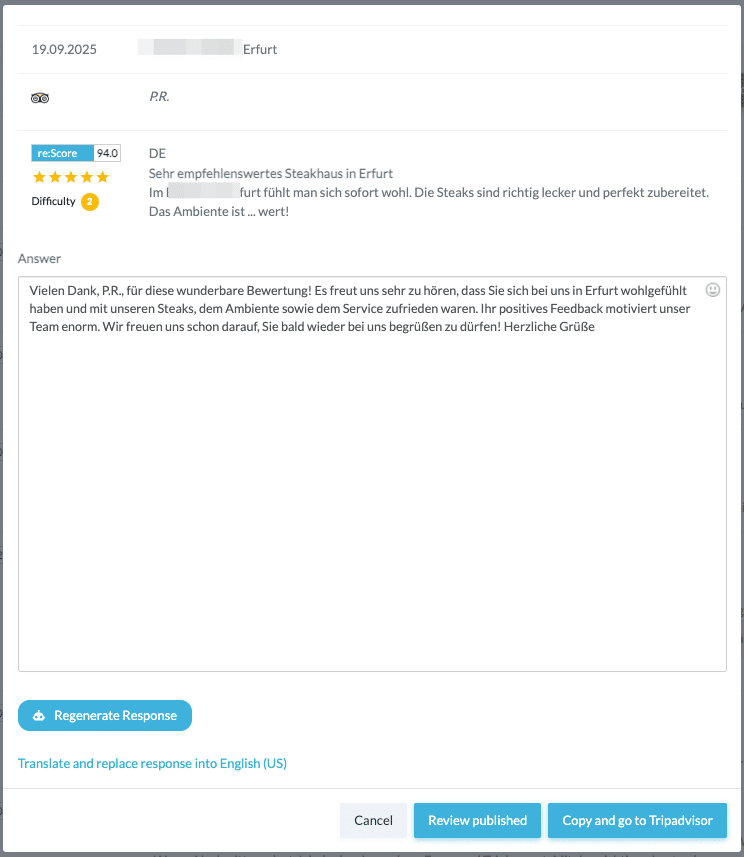
- Review and edit the generated response in the text field.
- Click “Copy and go to [platform]” – the response is copied to your clipboard and the platform opens in a new tab.
- Paste the response on the platform and publish it there.
- Return to re:spondelligent and click “Review published” to update the status of the review.
Important: Do not forget the last step – only by clicking “Review published” will the status of the review be correctly set to “responded”.
Ignore response
If you do not want to use a generated response, you can click the “Ignore Response” tab in the To-Do. The review will be set back to “Unanswered” status, and you can restart the process later if needed.
Translate response
Below the response field, you will find the option “Translate and replace response into [language]”. With one click, the current response is translated into your configured fallback language and replaced. You can set your fallback language in your user settings. This feature is helpful when a response was not generated in the desired language.