
IWantTo.Review Categories
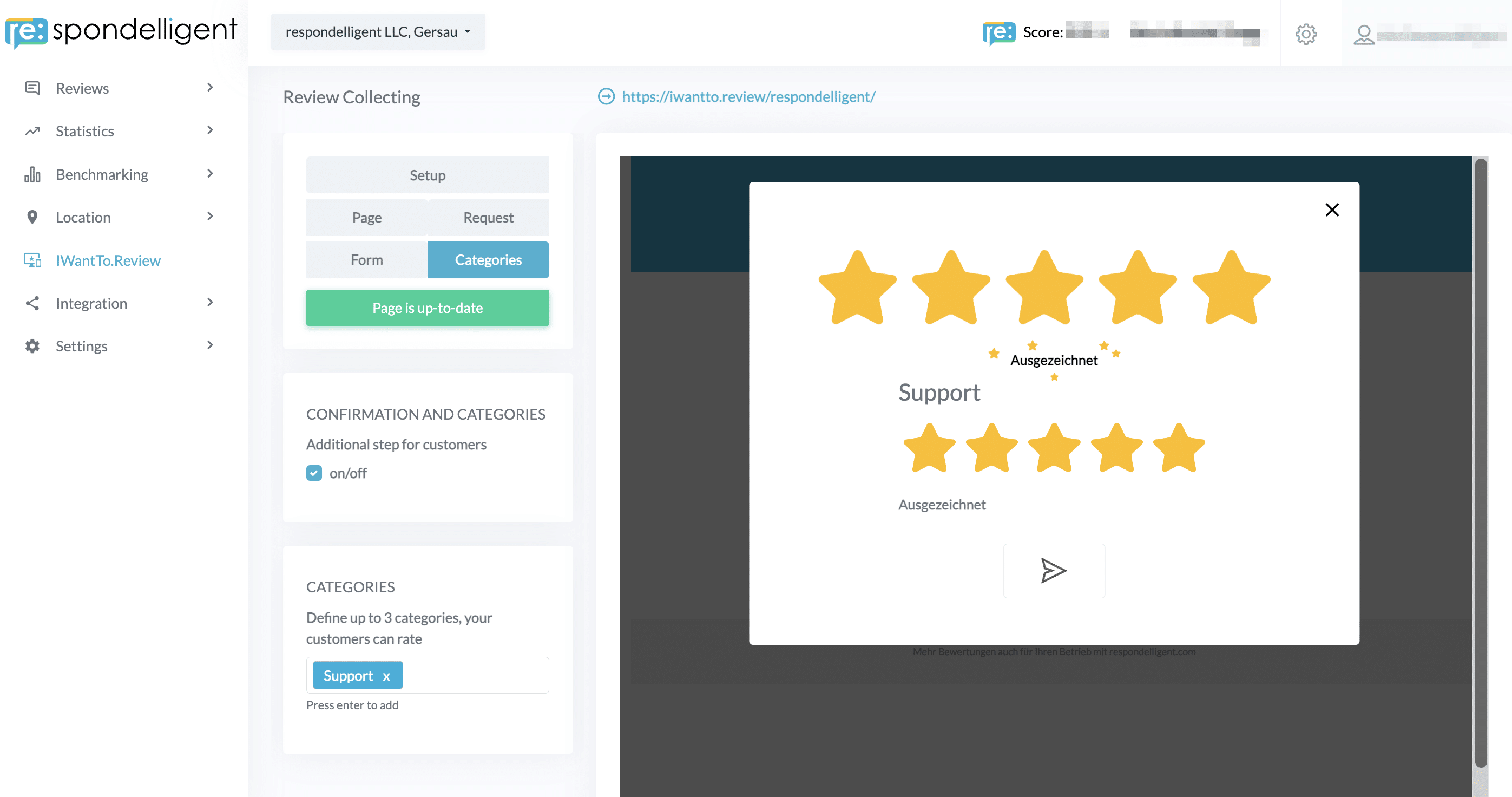
In the “Categories” tab, you can define your own topics for guests to rate or even create small surveys.
Rating Confirmation
Guests may hover over the stars and press wrongly. To avoid this, you may like to add an additional step before the rating is sent. In the “Categories” tab, click on the checkbox to activate a pop-up confirmation message.
This works without any additional categories as well. However, this step must be activated if you want to display your categories/survey to your guests.

Categories
You can add Categories to make the feedback even more detailed and collect more information from your guests. Start typing in the box, for example, Food or Service, and click enter. The categories will be immediately added to your form. You can add up to five categories that your guests can rate.
Tip: Instead of a category, you can also enter a question, e.g., “How did you like ordering via the app?”
Surveys
In addition, you have the option to include extra questions to gather more detailed insights.
For instance, you can customize it so that if a guest rates some of the categories with 1-3 stars, then questions and text fields will appear.
By making these fields mandatory, reviewers are required to provide answers before submitting the form. This ensures that you receive valuable feedback for improvement.
In Categories settings, you can activate Copy Text function. This will allow users to copy all the answers that they have written in IWTR and share them on public platforms such as Google, Tripadvisor, and Facebook.
