IWantTo.Review Page, Request, and Form
Once you’ve completed the setup, you can start customizing your landing page.
Page
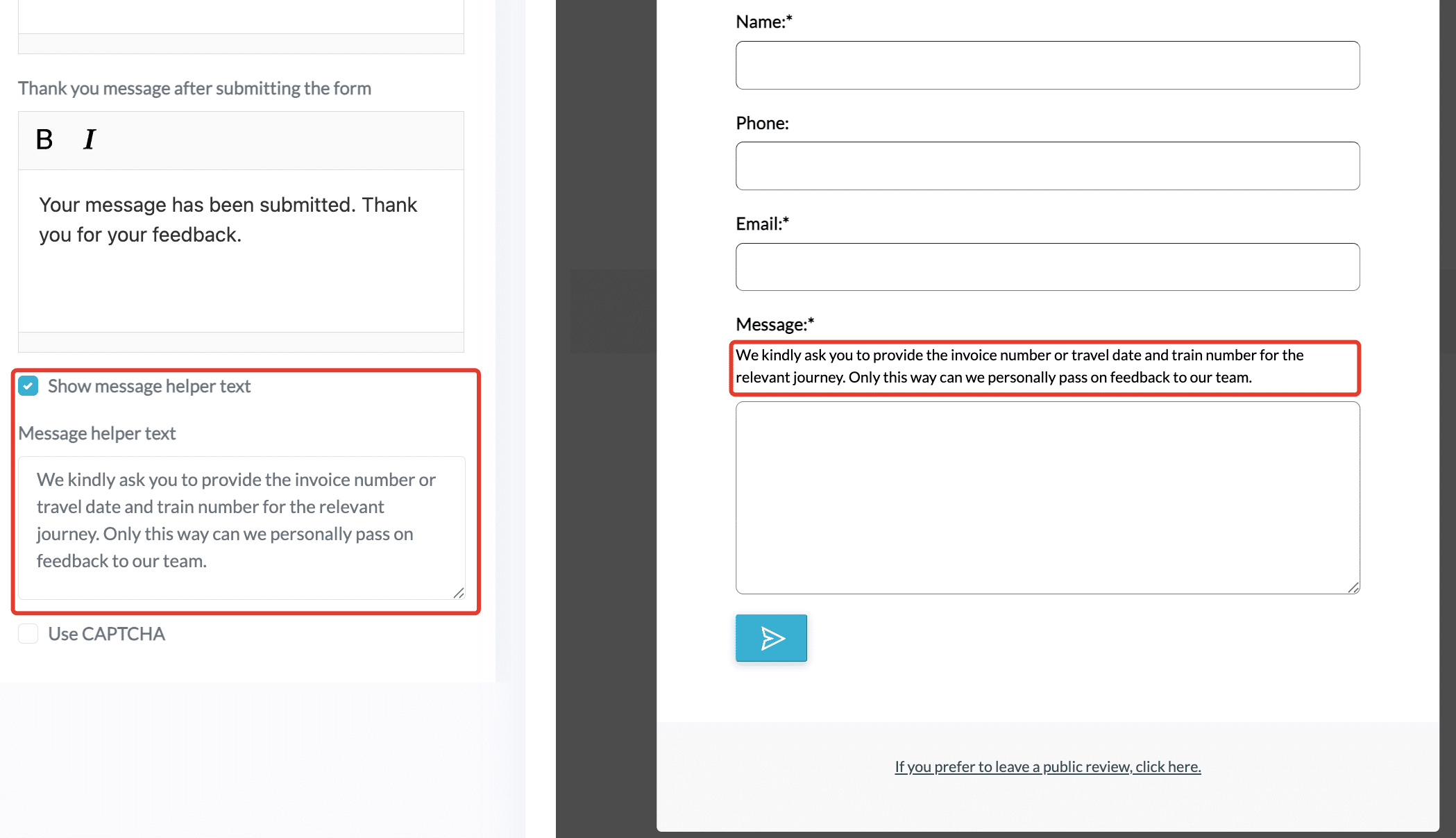
Click on the Page tab on the left to design your landing page. This is the first page that your guests will see.
First, you can upload your logo. We recommend using a logo in JPG format with a white background. Once you upload your logo, it will immediately appear on the page.
You can also decide whether you would like to have your business name in the header. Uncheck the box if you only want to have the logo on the page.
Scroll down to customize the colors of the header and text. Click on the color bar to choose another color.
By default, your landing page is available in one language. However, you can make it translatable. To do this choose the language of your landing page from the drop-down list. It will be later automatically translated and available in different languages.
Write and format the text of your header, main message, and footer. You can skip the footer message by unchecking the box.
When you share the page with your guests, they can hover over the stars and click to select a rating. In the page settings, you can choose the text that appears under the stars. When guests leave their rating, they can just mouse over the stars.
Again, don’t forget to publish changes and go to the next tab.
Request
IWantTo.Review tool allows you to generate more positive reviews on the platforms of your choice.
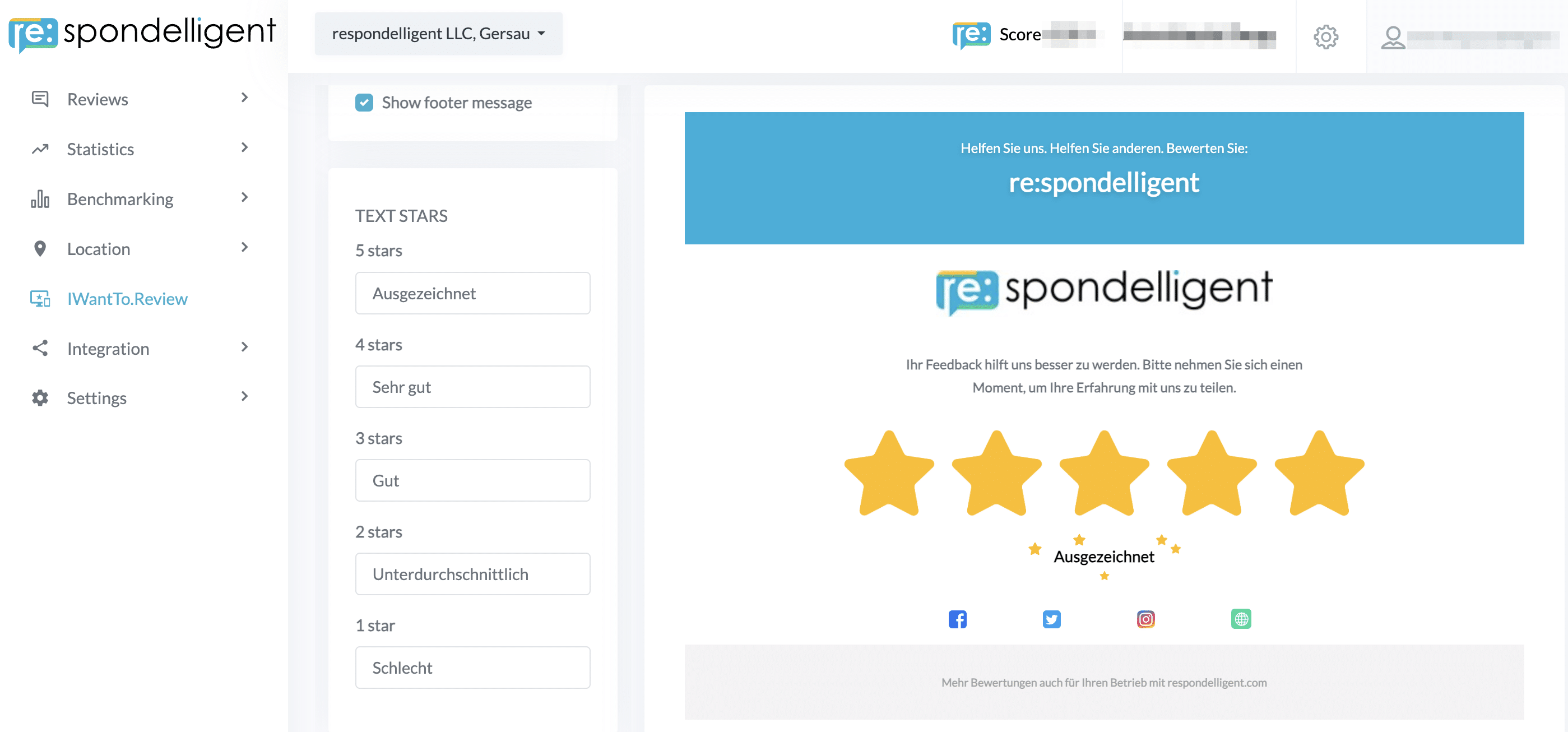
Earlier in the Setup tab, you defined the review platforms you would like to direct your guests after they have left a rating on IWantTo.Review landing page. Now, choose the Request tab to finalize the review request.
The text for the public review request is pre-written, and you can edit it if needed.
The logos of the platforms are clickable and will direct the guests to your review site listings.
Tip You can set up a threshold for public feedback with our Smart Auto Direct* function. In the example, we have chosen 3 stars and more. This means that if guests give you 3 stars or more, they will be directed to the relevant review platforms. If, however, they give you less than 3 stars, they will be prompted to fill in a private feedback form.
You can test directly in the tool to see how it works. Just go back to the Page tab, choose the rating, and click on the arrow sign.
By the way, all test reviews in this view are not saved.
Don’t forget to save your request settings and go to the next tab to set up your private feedback form.
* Some review sites don’t allow smart auto direct. Its use is your responsibility. If in doubt, switch off the function.
Form
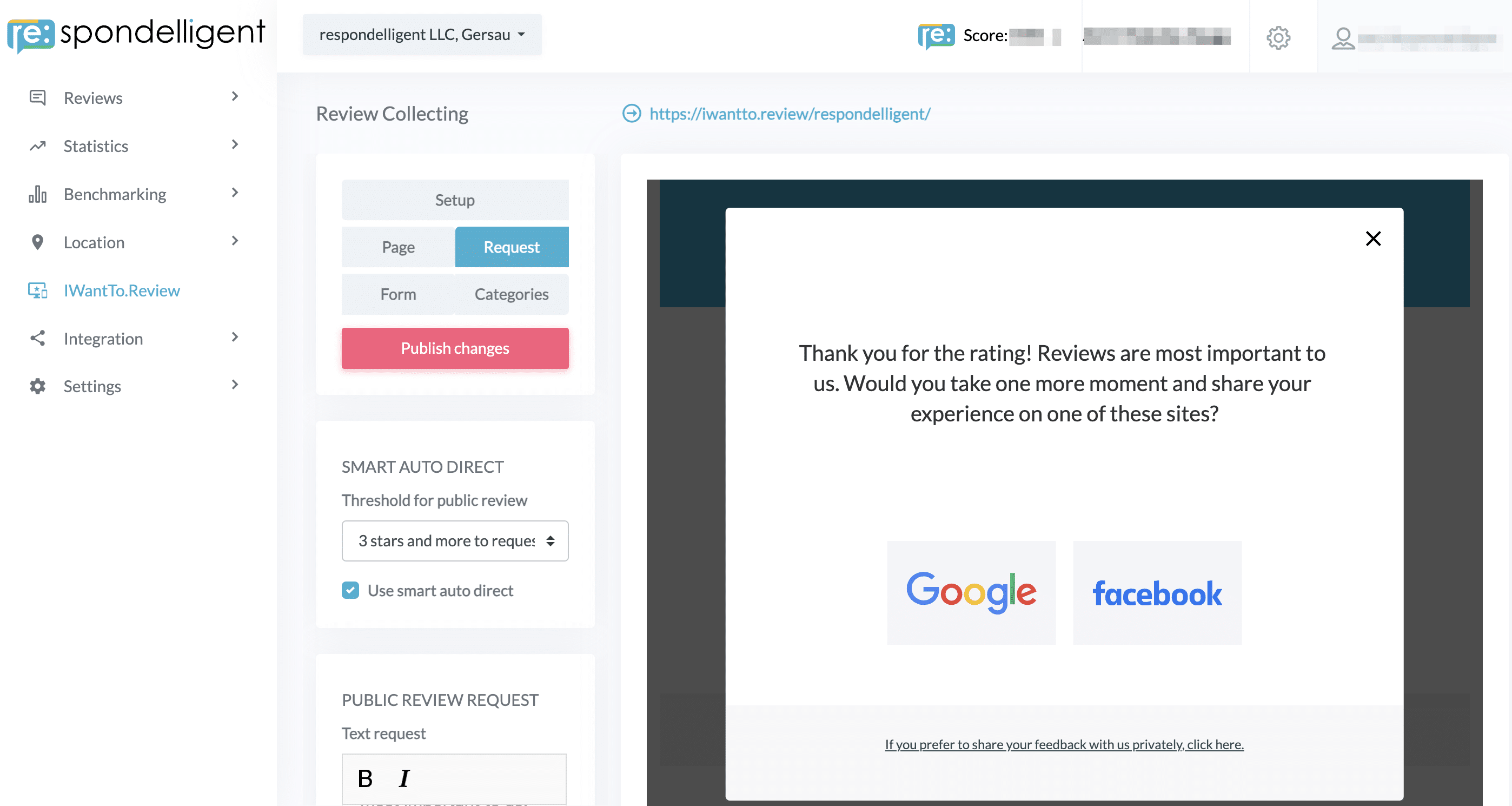
Click on the Form tab to design a private feedback form. This form is displayed either after a negative review (depending on your Smart Auto Direct settings) or when a guest clicks on the private feedback link at the bottom of the public review request.
This link cannot be deactivated, nor can the link on this form that allows guests to submit a public review if they wish.
The form fields cannot be edited, but you can customize the text above the form and in the link that redirects to the public review page.
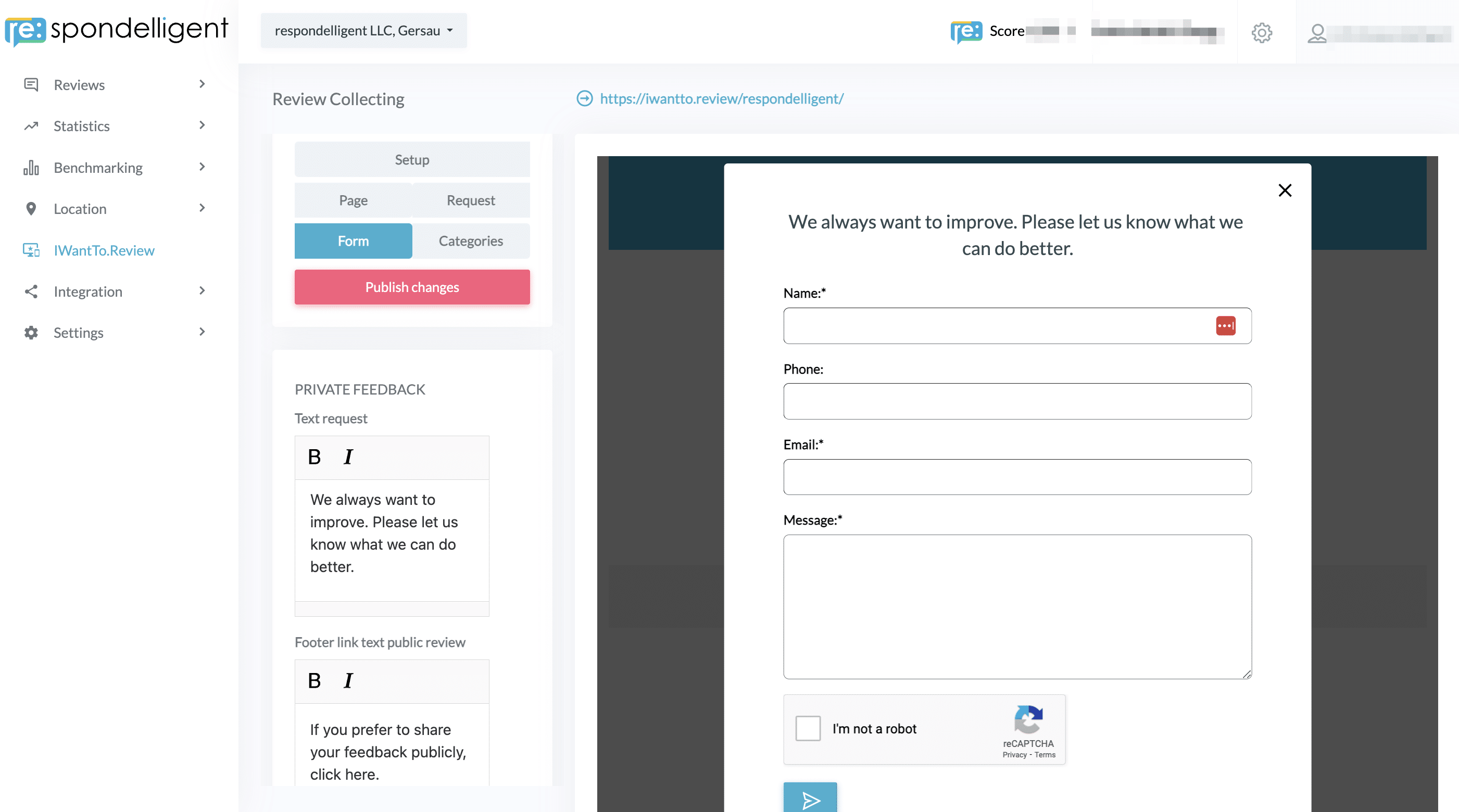
You can add helper text to prompt guests for additional details like receipt numbers or visit dates, making it easier to identify and address their feedback. Simply activate “Show message helper text” and enter your custom message.
By default, a CAPTCHA is included at the end of the form to prevent spam. If you don’t want to use CAPTCHA, uncheck the checkbox.
Your review page is now ready and can be shared with your guests.