
IWantTo.Review Integrations
All reviews from your review page are automatically saved in re:spondelligent.
You can also use various integrations to make this guest data actionable across other platforms.
IWantTo.Review Ratings in re:spondelligent
When guests start to rate your business using IWantTo.Review landing page, you will see two new Review sources: IWTR Rating and IWTR Form.
IWTR Rating stores the star rating clicks.
IWTR Form stores the form feedback, including all details, so you can follow up with the guest.
This means guest feedback can appear in both IWTR Rating and IWTR Form.
This approach ensures that all reviews are captured, even if a guest exits the review process early.
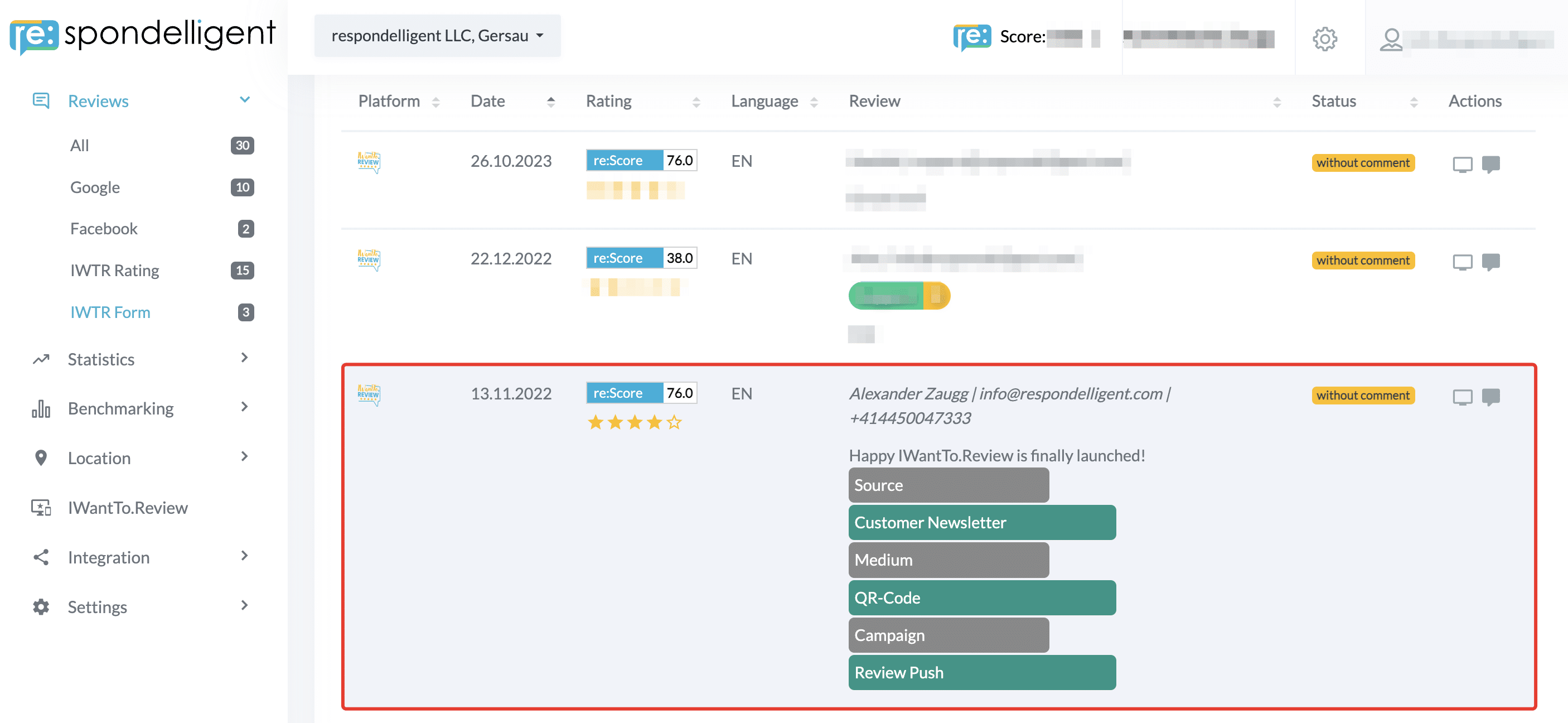
At the bottom of the page, you can find an Export button to export the IWTR data into an Excel file. It allows you to sort, filter, and analyse your IWTR reviews. The file contains all the useful data, including the username, rating, comment text, IWTR categories, source, and additional parameters (UTM and aleno).

Google Analytics
Option 1 (Direct translation): Would you like to collect user data from your IWantTo.Review page and use this data to create targeted marketing campaigns on Google and social media? Read about our integration with Google Analytics.
aleno
IWantTo.Review can be fully integrated with the aleno table reservation system.
This allows you not only to collect reviews on autopilot but also to build a complete guest CRM. You can find all the benefits here.
If interested, contact us directly or aleno.
IWTR stars in post-stay emails
If you send post-stay emails to your guests asking them to review your business, we made it possible for the guests to click on a star directly in the email.
A click on the star will lead the guests to your IWTR page, and the star rating will be saved in the app. This happens only for the main star rating. If you have added categories, guests can rate them separately.

If you have set up a threshold for public feedback with our Smart Auto Direct function, the following will happen:
Considering the threshold is 4 stars or more, if guests click on one of the first three stars in the email, thus giving a rating of 1, 2, or 3 stars, they will be prompted to fill in a private feedback form. If guests click on the fourth or the fifth star, they will be directed to the relevant review platforms.

In order for this to work, you have to add a parameter at the end of your IWTR URL and add this link to each star image in your post-stay email. Please see the examples below:
1 Star: https://iwantto.review/business-name?utm_source=Post+Stay&utm_medium=E-Mail&ir=1
2 Stars: https://iwantto.review/business-name?utm_source=Post+Stay&utm_medium=E-Mail&ir=2
3 Stars: https://iwantto.review/business-name?utm_source=Post+Stay&utm_medium=E-Mail&ir=3
4 Stars: https://iwantto.review/business-name?utm_source=Post+Stay&utm_medium=E-Mail&ir=4
5 Stars: https://iwantto.review/business-name?utm_source=Post+Stay&utm_medium=E-Mail&ir=5
Add the actual URL of your IWTR page instead of https://iwantto.review/business-name. It has to be followed by “?” before you add the UTM parameters. You can change the UTM parameters from the example or skip them completely, except for the last and relevant part “ir=5”.
You can download the star image in its original size here or use your own icons.
Integration with email services
If you use one of the email services (Mandrill/Mailchimp, Sendgrid, or Brevo), you can respond to IWTR reviews directly in re:spondelligent, either manually, with our Smart Response Templates, or with AI.
Your response will then be sent as an email to your customer from your desired sender address, allowing you to start a genuine dialogue.
Contact us for more information.