
AI Responses – What Changes for Existing Customers? (before May 2026)
AI Responses – What Changes for Existing Customers? (before May 2026)
With the AI Responses update, we have fundamentally improved the user interface and how you manage your settings. The functionality remains unchanged – all your existing settings have been fully carried over. This article explains what has changed and which steps we recommend.
What was carried over?
All your previous settings have been preserved:
- Review/response pairs: Fully carried over. The new limit is 15 pairs (previously 10). You can optionally add more pairs.
- Additional instructions: Your previous instructions have been carried over and continue to work as before.
- Email address: Has been transferred to the new “Contact email for responses” field.
What has changed?
New menu item
The settings for AI responses can now be found under Location → AI Responses (previously “Answer Details”).
New layout for instructions
Your additional instructions were previously stored in a single large text field. In the new system, instructions are managed as individual cards that you can enable, disable, edit, and sort individually. Your previous instructions have been carried over as a single text block in one card – they continue to work, but we recommend splitting them into individual instructions.
Language instructions
There is now a dedicated field for language settings under General Information. If you previously had language instructions in your instruction text (e.g., “Respond to German reviews in German, respond to all others in English”), these should be moved to the new language field. This is important for the language detection to work reliably.
Recommended steps
1. Move language instructions
If you have a language rule in your previous instructions:
- Go to Location → AI Responses → Additional Information.
- Under General Information, disable the option “Response in the same language as the review”.
- Enter your language rule in the text field that appears (e.g., “Respond to German reviews in German, respond to all others in English”).
- Click “Save General Information”.
- Then remove the language instruction from your additional instructions to avoid conflicts.
2. Split instructions
To split your instructions into individual cards:
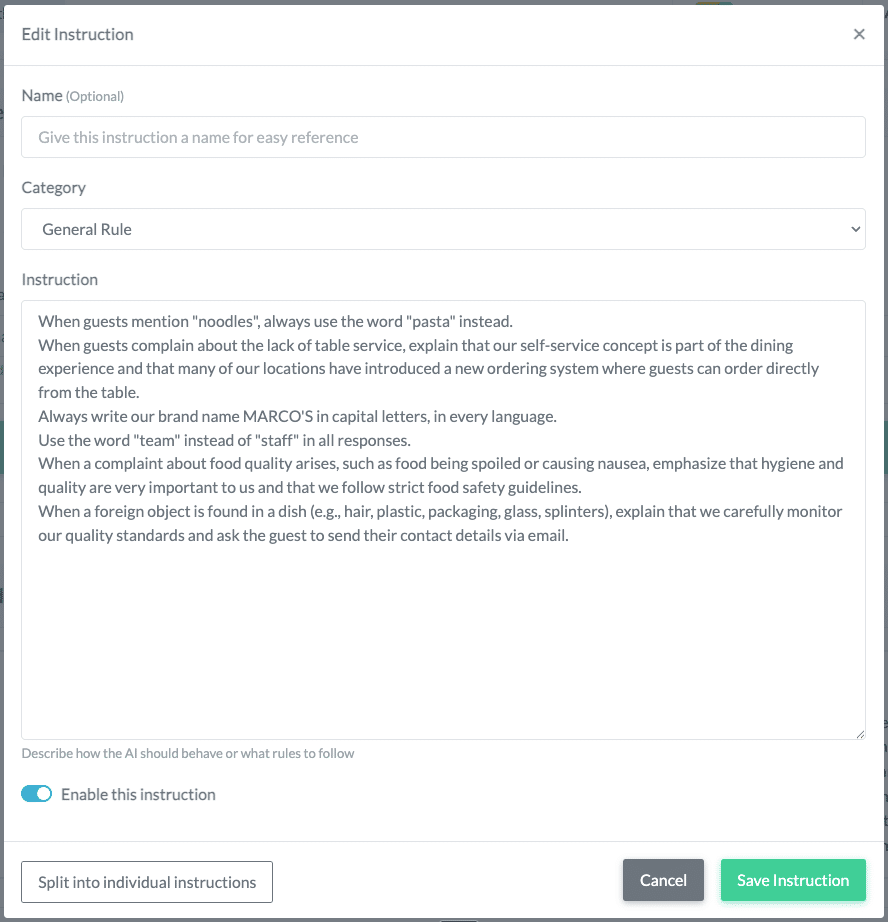
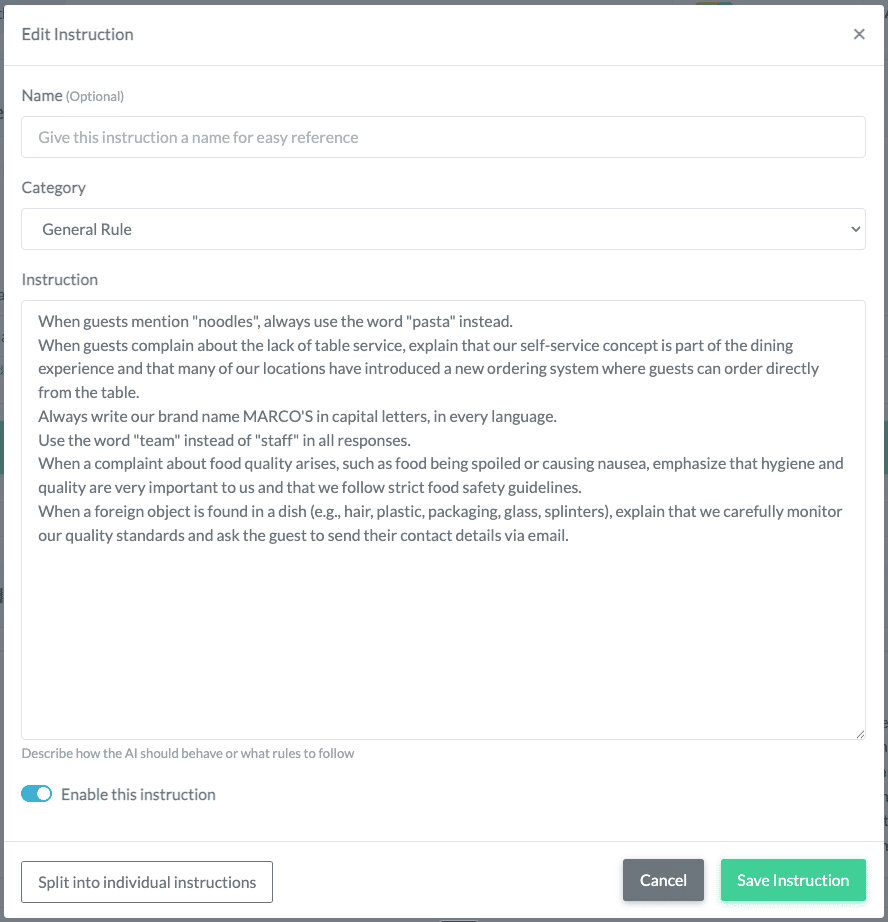
- Click the edit icon (pencil) on the text block.
- In the edit window, you will see the button “Split into individual instructions” at the bottom left.
- Click on it. The process may take up to 60 seconds.

- A preview will appear showing the detected instructions. Each instruction is displayed as its own card, with name, category, and instruction text.
- Review the split carefully. For each instruction, you can:
- Deselect the checkbox if you do not want to include an instruction.
- Assign a name (optional, for your internal reference).
- Adjust the category.
- Edit the instruction text directly.
- Click “Apply split” to confirm the split.
Important: Unselected instructions will not be applied. The original instruction will be replaced by the selected ones. We recommend saving a copy of your previous instruction text in a separate location (e.g., in a text file) before splitting, in case you need the original text later.
3. Review the result
After splitting, you will see your instructions as individual cards. Use the test feature (“Test AI”) to check whether your AI responses still match your expectations.
4. For multiple locations
If you use the same instructions at multiple locations, you only need to split them once. Split the instructions at one location and then copy the result to your other locations using “Copy to locations”.